What the app does, who does what, and what you need on the day.
CricketWick runs a cricket tournament from one place. One phone at the ground scores each ball, and everything else follows from that: the live score anyone can watch, the points table, every player's record, the big-screen scoreboard, awards and shareable cards.
It runs in a web browser on any phone, tablet or computer, so there is nothing to download. You can also install it on your home screen like an app (see Share, install and accessibility).
Who does what
Role
What they can do
Needs an account?
Organiser
Everything: rules, teams, fixtures, scoring, big screens, sponsors, auctions, corrections and accounts.
Yes
Team manager
Their own team's details and squad. Scores their own team's matches. Bids for their team in an auction.
Yes
Scorer
Scores a match. Only one phone scores a match at a time.
Yes
Player
Signs up, keeps their own profile and follows their own record. Can ask to join a team.
Yes
Spectator
Follows live scores, tables, statistics and awards.
The link to your site. Nothing to install and no account.
cricketwick.com/app
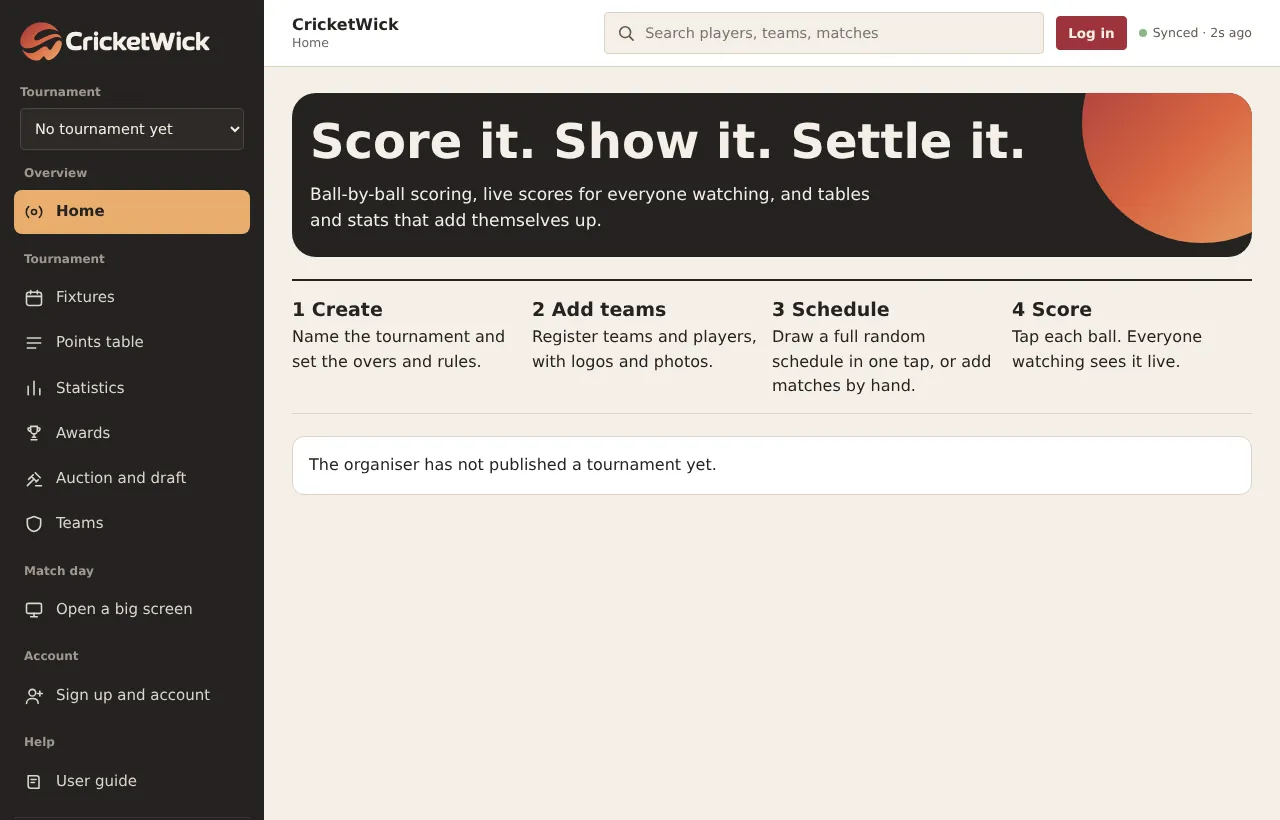
The first screen before any tournament exists. As organiser you start with Create tournament, or load the sample tournament to look around.
02Chapter 2 of 31
Sign up and log in
Create your account, log in on any device and reset a forgotten password.
Who: Everyone
Spectators never need an account. Players, team managers and scorers sign up themselves. The organiser account is created when the site is first set up.
Open Sign up in the menu (it becomes Me once you are logged in).
Press Create account. Type your name, email and a password of at least 10 characters.
Press Create account again to finish. You are logged in.
On another device, press Log in and use the same email and password.
cricketwick.com/app
The sign-up form. A password needs at least 10 characters and cannot be a common one.
Forgot your password?
On the Log in form, press the forgotten password link.
Type your email and send it.
Open the email and use the link. It works once, for one hour.
Choose a new password. Changing it signs you out on every other device.
03Chapter 3 of 31
Create your tournament
Name it, pick the format, and set the playing rules and points once.
Who: Organiser
Open Manage.
Press New tournament.
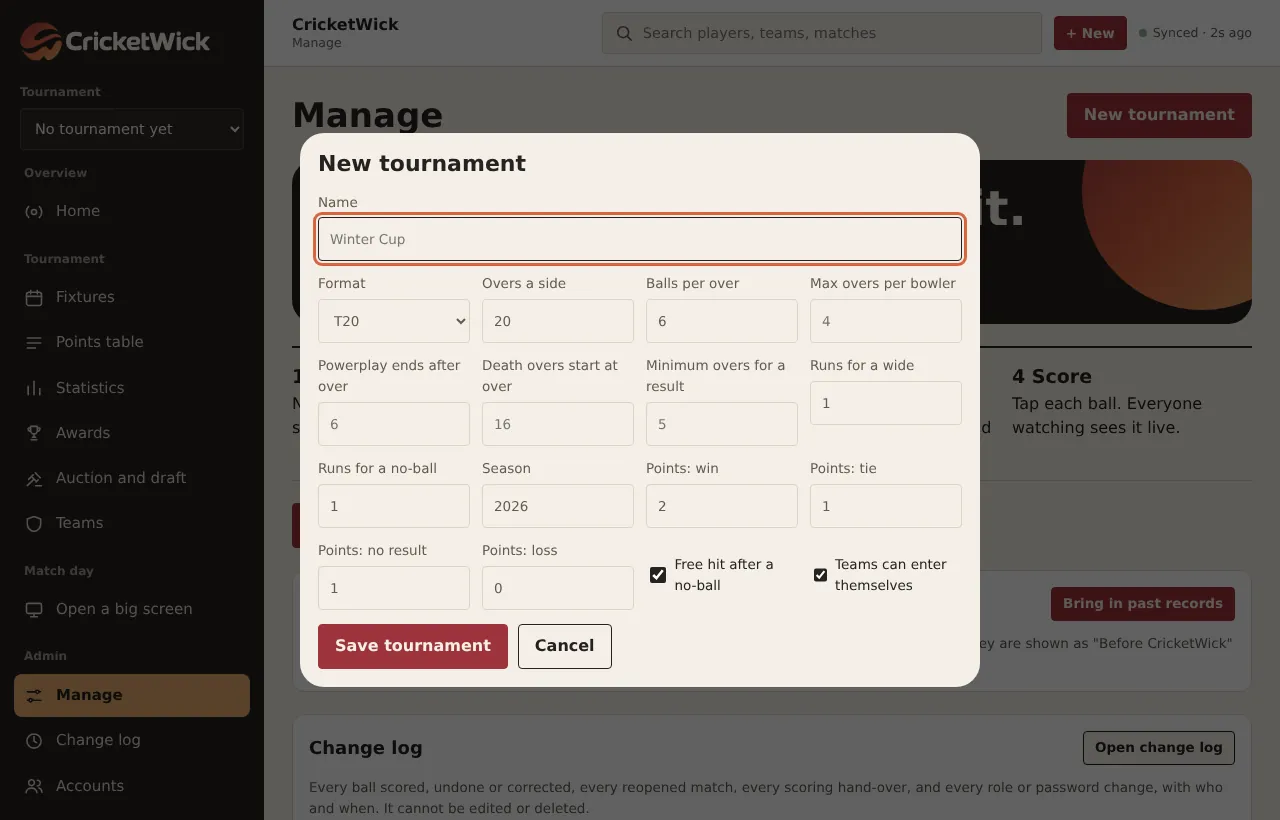
Type a Name and choose a Format: T20, 50 overs, T10, The Hundred, 40 overs, 30 overs, Sixes or your own. The format fills in the overs, balls per over, bowler limit and powerplay for you.
Change anything your league does differently (the table below lists every field).
Press Save tournament.
cricketwick.com/app
Every rule is on one form. Pick the format first, then change only what your league does differently.
Every field on the form
Field
What it does
Overs a side
How long each innings is.
Balls per over
Six for most cricket. Five for The Hundred.
Max overs per bowler
Checked when the scorer picks the bowler.
Powerplay and death overs
Used for the phase statistics and the big screen.
Runs for a wide and a no-ball
One each under the Laws. Some leagues use two.
Free hit after a no-ball
Tick it if your league plays free hits.
Points for a win, tie, no result and loss
Used by the points table.
Teams can enter themselves
Lets team managers register their own teams.
04Chapter 4 of 31
The home dashboard
What every part of the home screen shows and where it leads.
Who: Everyone
The home screen is the front page of your tournament. Spectators see it first when they open your link.
cricketwick.com/app
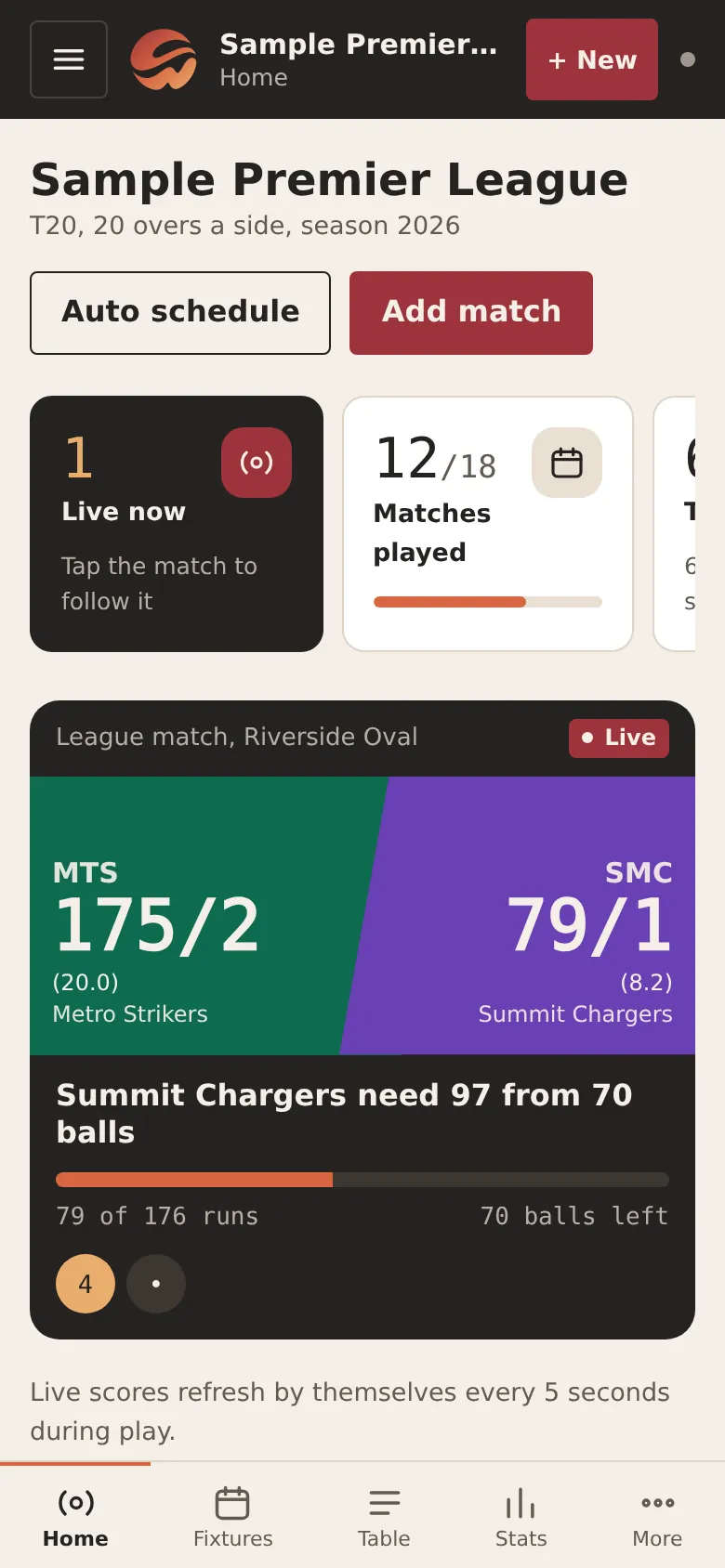
The live match sits at the top. Matches played, teams, runs and wickets are counted for you, and the leading players are listed beside it.
Live match
The match being scored now, with the score refreshing by itself. Tap it for the full match page.
Counters
Matches played, teams and players, runs scored and wickets taken.
Quick actions
For the organiser: add a match, register a team, add a player, add a big screen.
Most runs and wickets
The leading players so far. Tap a name for their page.
On a phone the same dashboard stacks into one column, with the main menu along the bottom.
Teams and fixtures
05Chapter 5 of 31
Teams and players
Register teams, build squads, handle join requests and keep one profile per person.
Who: OrganiserTeam manager
Open Teams and press Register a team.
Give it a Team name, a Short name of up to four letters, a colour, and a logo if you have one.
Type the squad's names in the box, one per line. Each becomes a player in the team.
Press save. Open the team to set the captain, vice-captain and wicketkeeper.
cricketwick.com/app
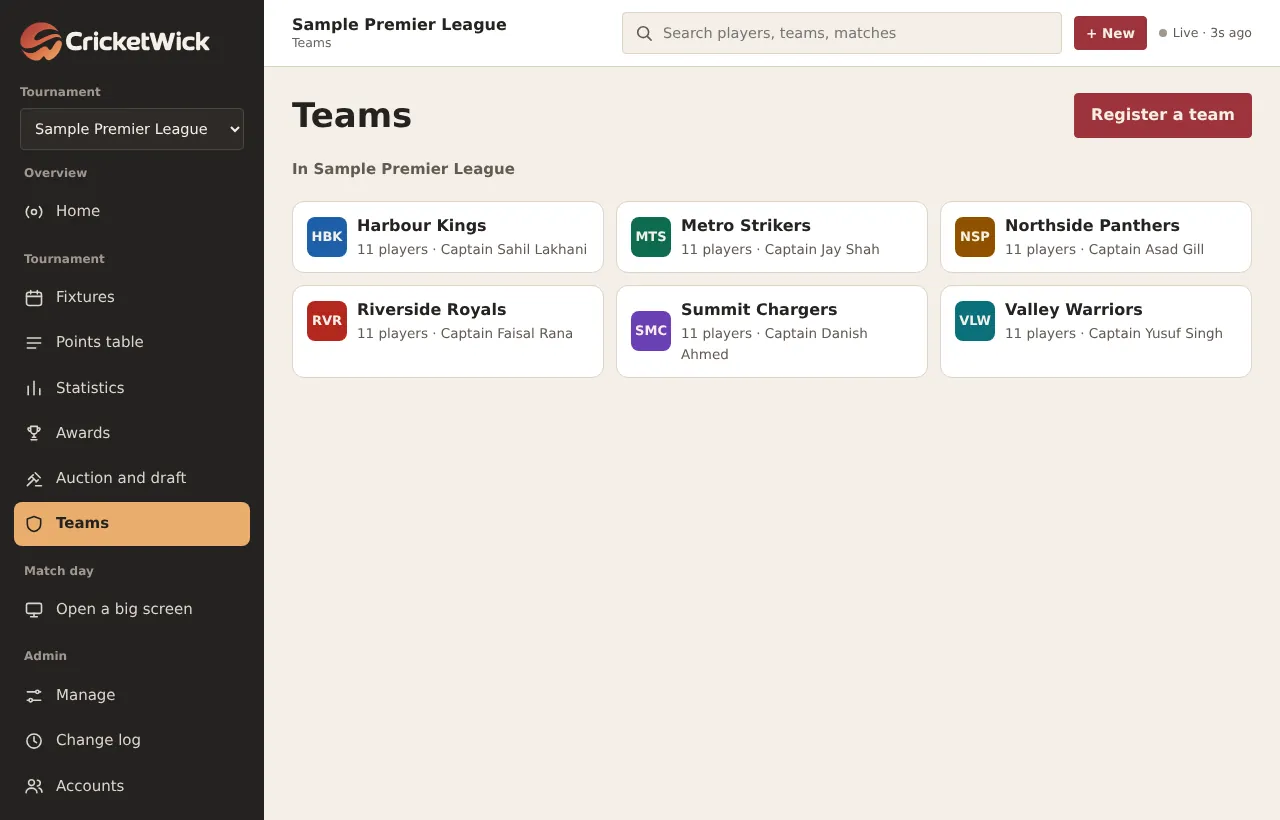
Every team in the tournament, with its colour and record.
cricketwick.com/app
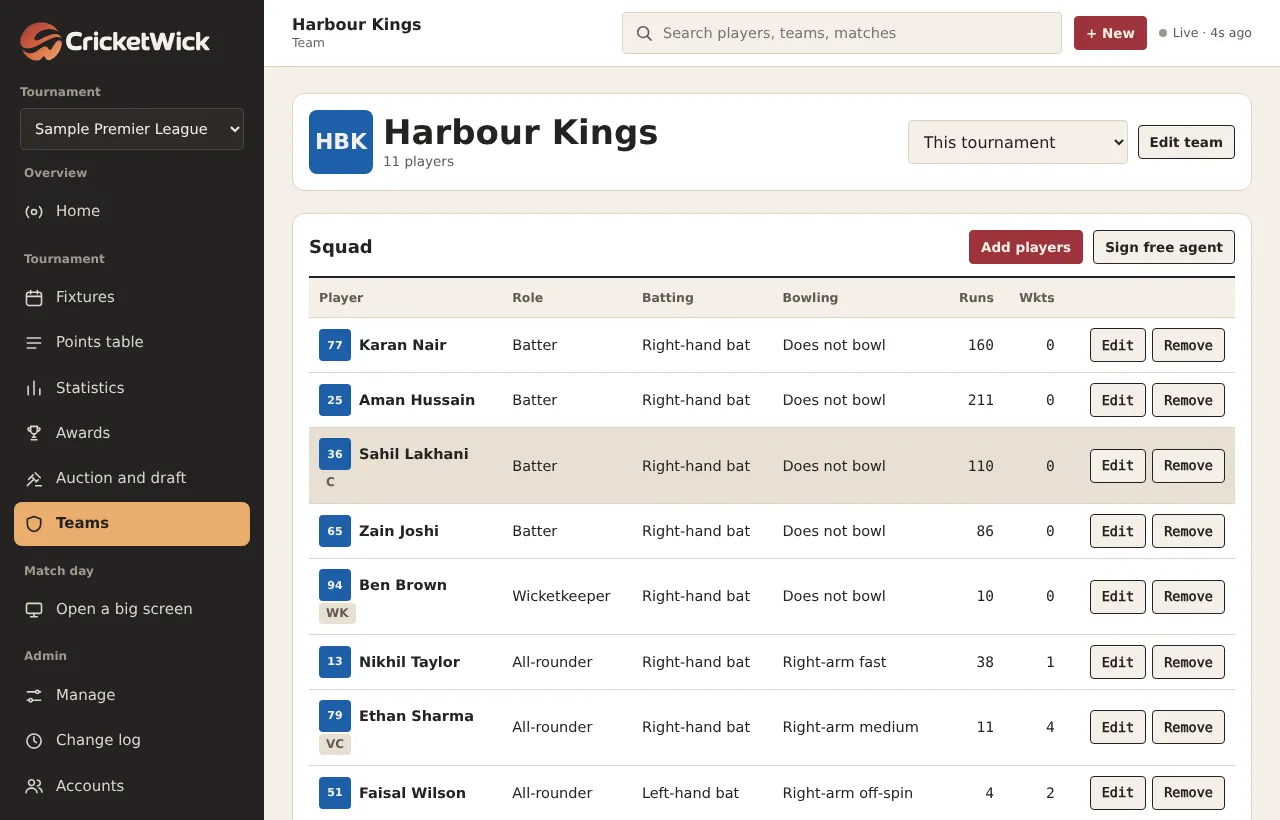
A team page: the squad with each player's role and style, then the team's record, head to head and partnerships as matches are played.
Players joining a team
A player signs up and opens Sign up as a player.
They fill in their profile and choose the team they want to join. This sends a request.
The team manager or organiser opens the team and accepts or declines the request.
One person, one profile
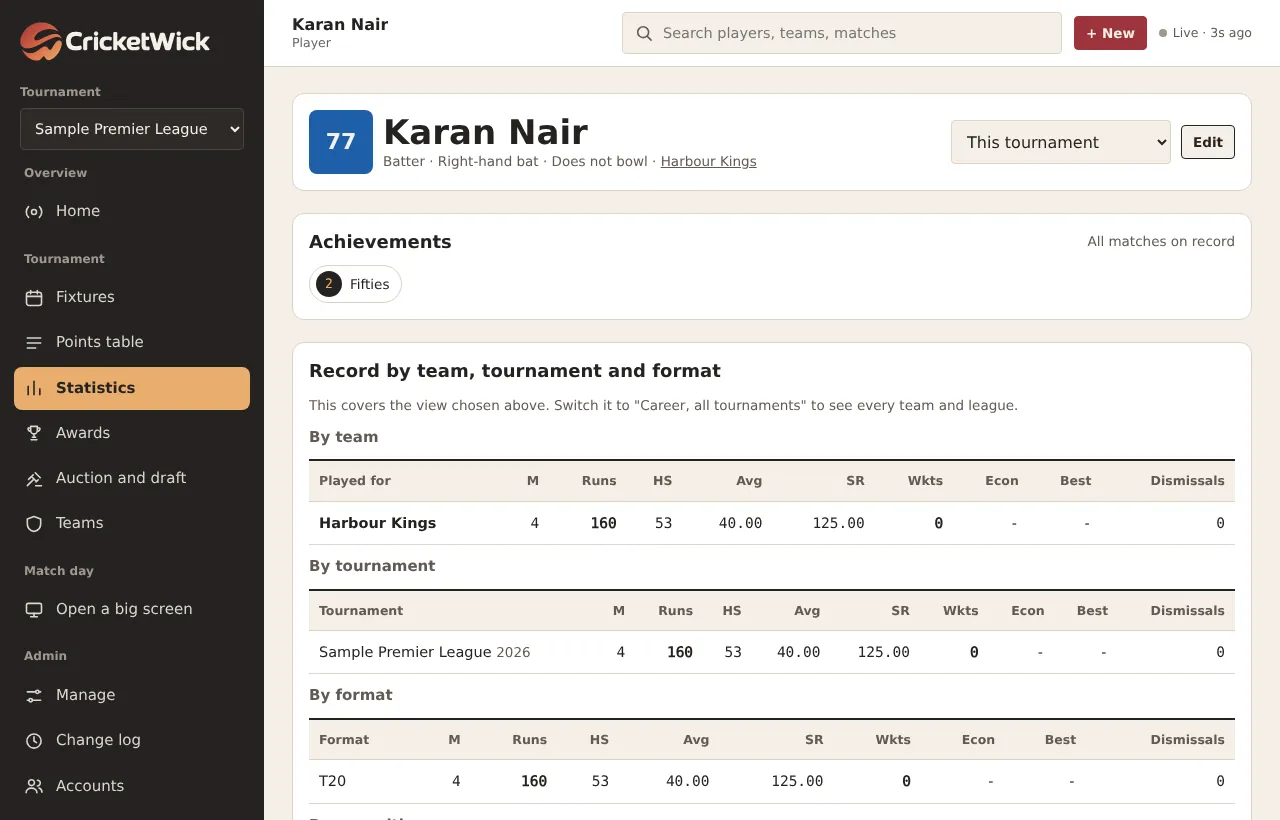
A player who moves team, or plays for two teams, keeps one profile. Their career stays together and can be split by team, tournament and format on their page. If someone ends up with two profiles, merge them (see Corrections, duplicates and the change log).
cricketwick.com/app
A player page: batting, bowling and fielding by team, tournament, format and opponent, with form and phase charts.
06Chapter 6 of 31
Fixtures
Draw the whole schedule in one go, or add and edit matches by hand.
Who: Organiser
Open Manage and press Auto schedule.
Choose a league, groups or a knockout, and how many times teams meet.
Set the first day, which days of the week you play, the start times and the grounds.
Press Generate random schedule. Every match gets a date, a time and a ground.
cricketwick.com/app
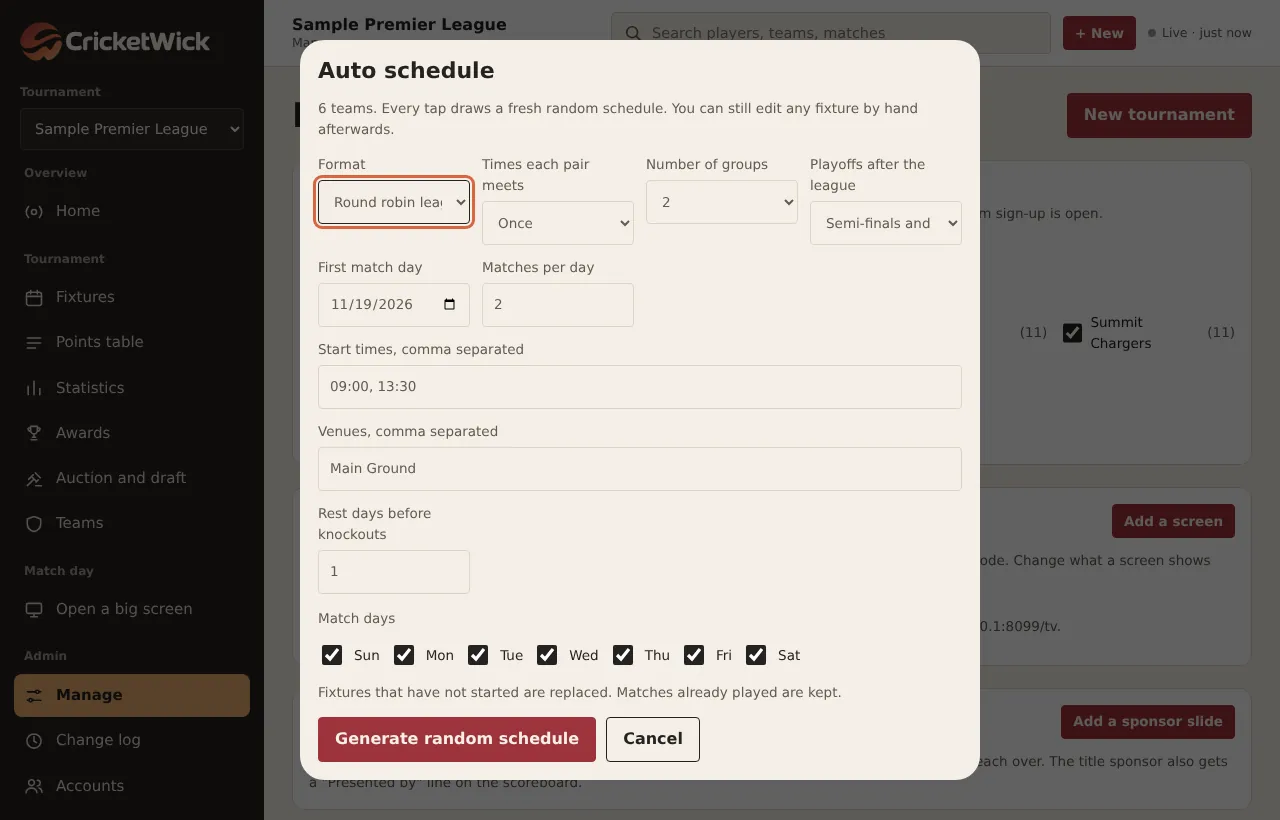
The Auto schedule form. Each press draws a new random order; nothing is fixed until you generate it.
cricketwick.com/app
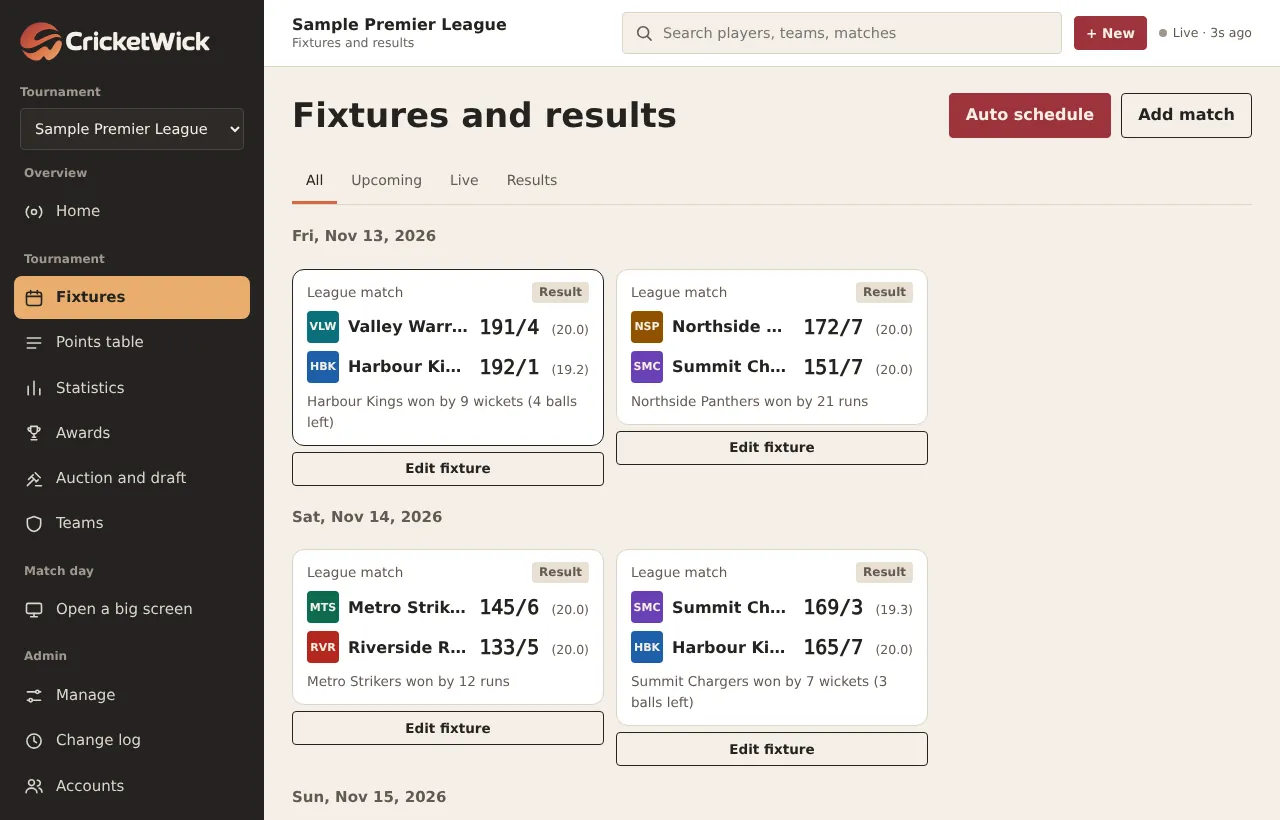
Fixtures and results, grouped by day. Use the filters at the top for all, upcoming, live or results.
By hand
Press Add match by hand on the Manage page, or Add match on the dashboard.
Choose the two teams, the date, time and ground, and save.
To change a match later, open it and press Abandon or edit fixture.
Match day
07Chapter 7 of 31
Start a match
The toss, the playing elevens and the openers.
Who: OrganiserTeam managerScorer
Open the match from Fixtures and choose the Score this match tab.
Press Start match.
Pick each side's playing eleven and the wicketkeepers.
Record who won the toss and whether they chose to bat or bowl.
Choose the two opening batters and the opening bowler.
cricketwick.com/app
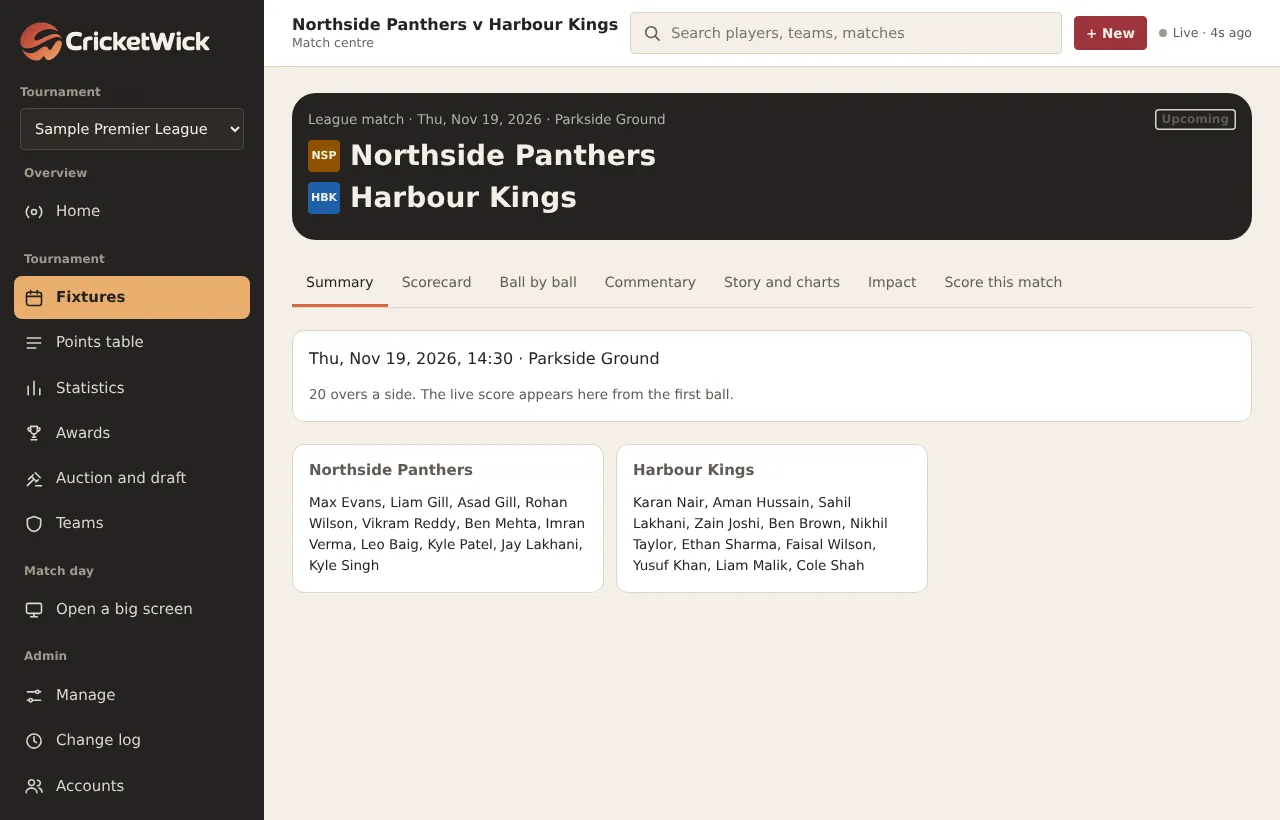
An upcoming match. The tabs along the top become live once the first ball is scored.
08Chapter 8 of 31
Score ball by ball
One tap per ball. Extras, wickets, bowler changes, retirements, penalties and corrections.
Who: OrganiserTeam managerScorer
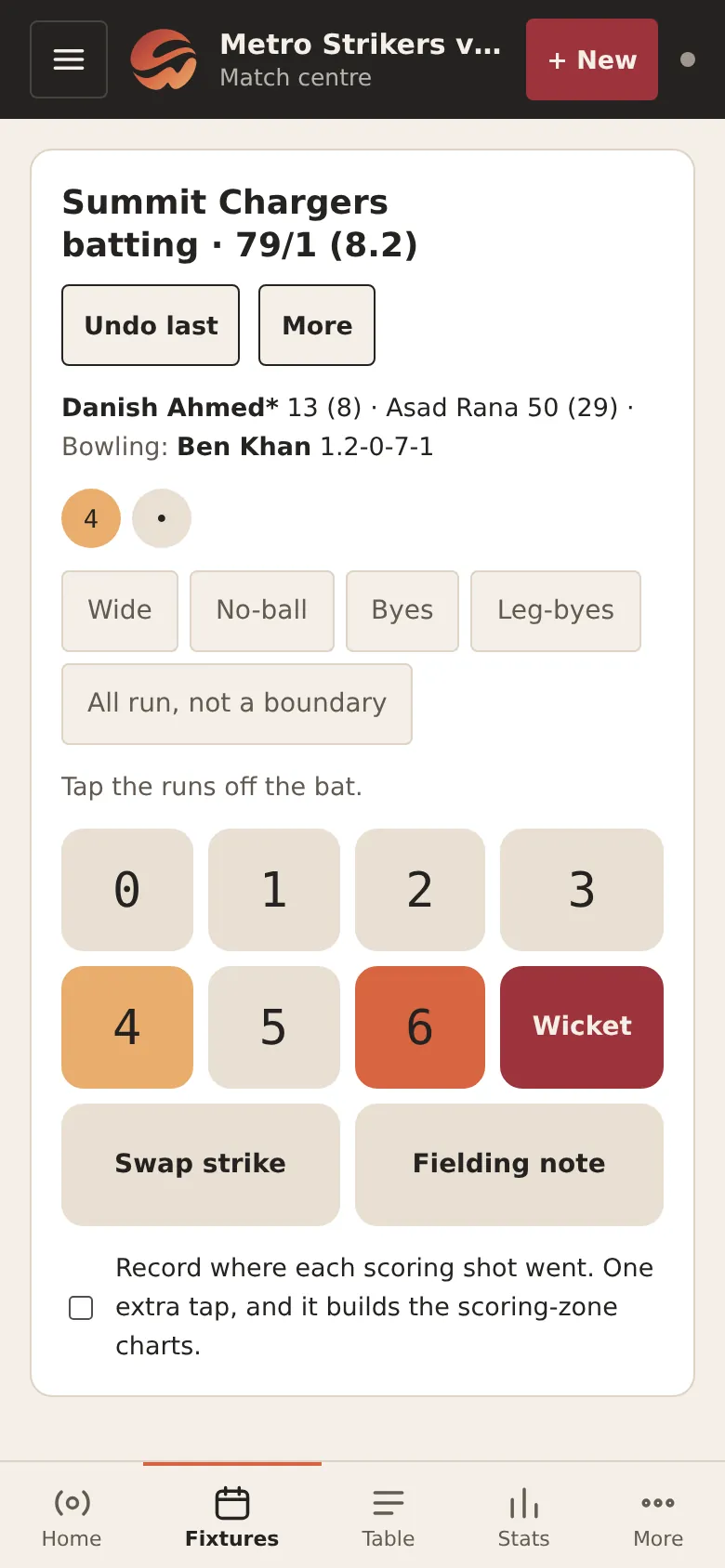
For most balls the whole job is one tap: the runs the batters scored off the bat. CricketWick works out strike, overs, extras, bowling figures, partnerships and the result.
The scoring pad on a phone. The score, the batters and the bowler stay in view above the buttons.
Every ball
Tap the runs off the bat: 0 to 6.
For an extra, tap Wide, No-ball, Byes or Leg-byes first, then the runs. All run, not a boundary marks four or more that were run.
For a dismissal, tap Wicket, choose how the batter was out and who was involved, then pick the new batter.
At the end of each over, pick the next bowler. The app stops a bowler bowling consecutive overs and over their limit.
Button
Use it for
Undo last
Removes the last ball. Tap again to go back further.
Swap strike
Fixes which batter is on strike.
Fielding note
Records a dropped catch, a run saved or a misfield, for the fielding statistics.
More
Retire a batter, change bowler mid-over, add penalty runs, record timed out, make a replacement, close the innings or end as no result.
cricketwick.com/app
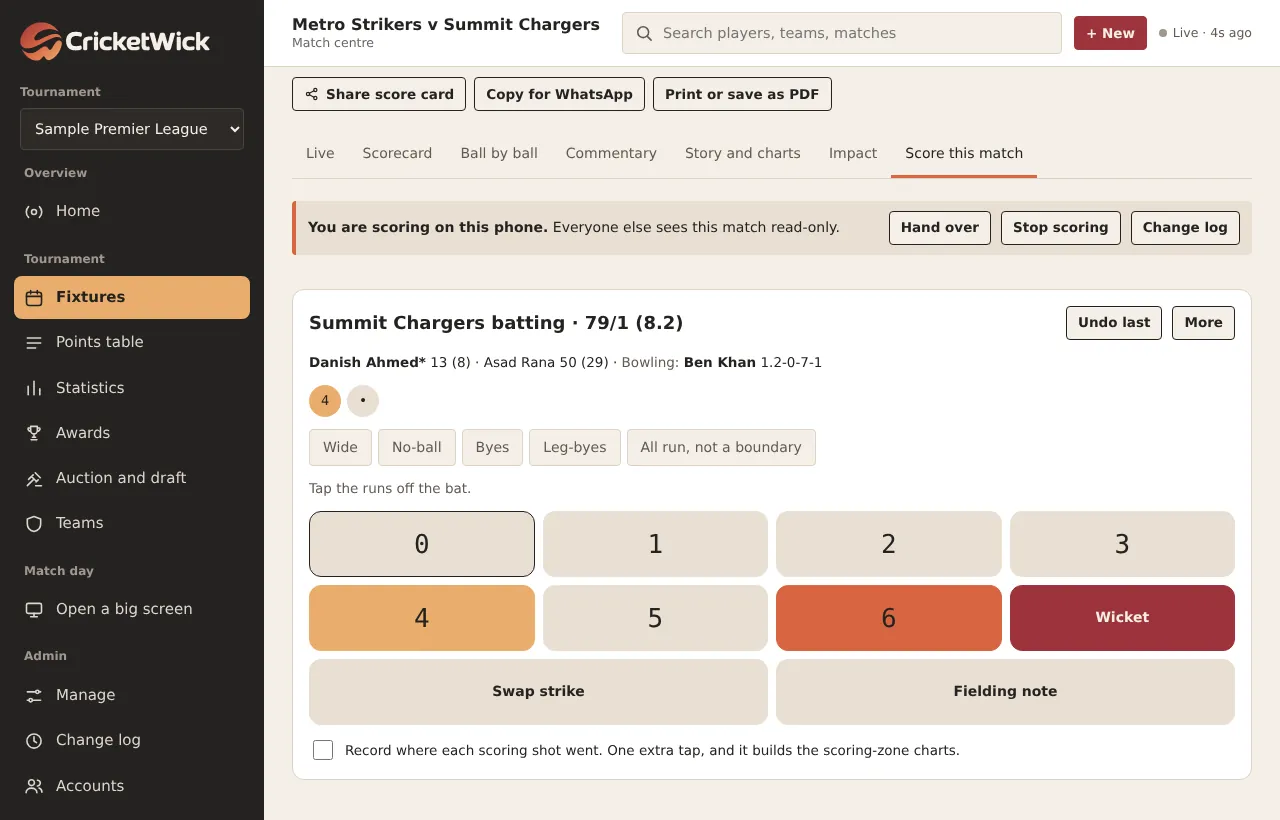
The same pad on a computer.
Shot directions
Under the pad, tick Record where each scoring shot went. After a scoring shot, tap where it went on a picture of the field. It adds one tap for scoring shots and none for dot balls, and builds the scoring-zone charts.
Between innings and in the rain
When the first innings ends, CricketWick shows the target.
For a full chase, leave Revised overs (rain) and Revised target (DLS) blank and press Start second innings.
If rain shortened the chase, type the overs and the target from the official DLS calculator first.
If the chase is stopped for good, type the DLS par score when play stopped and press Apply par score. Above par wins, level is a tie, below par loses. If too few overs were bowled, record it as a no result.
Ties and the result
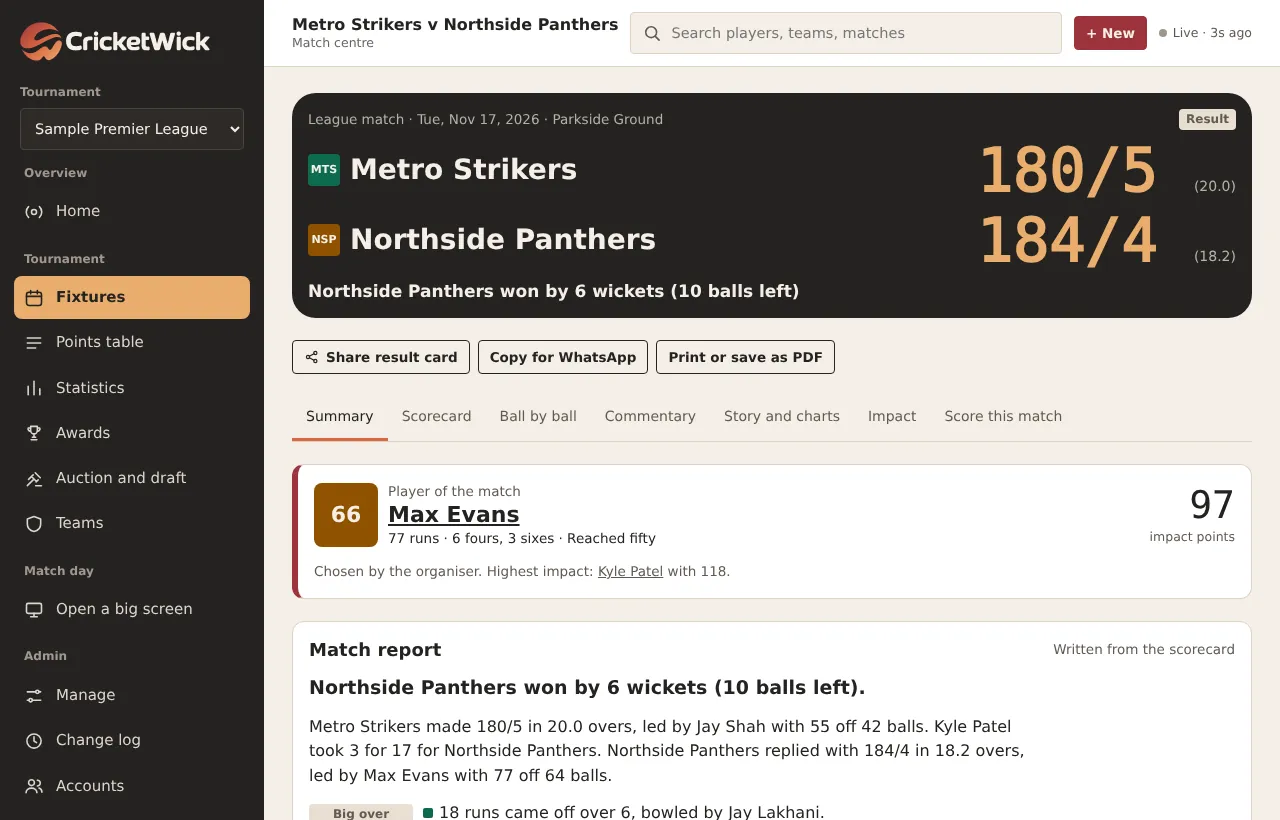
If the scores are level, choose Score a Super Over, decide it without one, or leave it as a tie. Then press Confirm result and pick the player of the match. The app suggests the player with the most impact points; you can choose anyone.
09Chapter 9 of 31
One scorer at a time
How the scoring lock stops two phones changing the same match.
Who: OrganiserTeam managerScorer
Only one phone can score a match. Everyone else sees it read-only, so nobody changes the score by accident.
The scorer opens the match, chooses Score this match and presses Score on this phone.
Balls from any other phone are refused while they hold it.
To pass it on, press Hand over and choose the next scorer, or Stop scoring to free it.
If a phone dies, the organiser presses Take scoring back. If the scorer's phone goes quiet for a while, the lock lapses by itself.
cricketwick.com/app
The banner above the pad says who is scoring. Hand over and Stop scoring sit beside it.
10Chapter 10 of 31
Follow a match
The live view, scorecard, ball by ball, commentary, story and impact.
Who: Everyone
Anyone with the link can follow. Live scores refresh by themselves every five seconds while a match is in play.
cricketwick.com/app
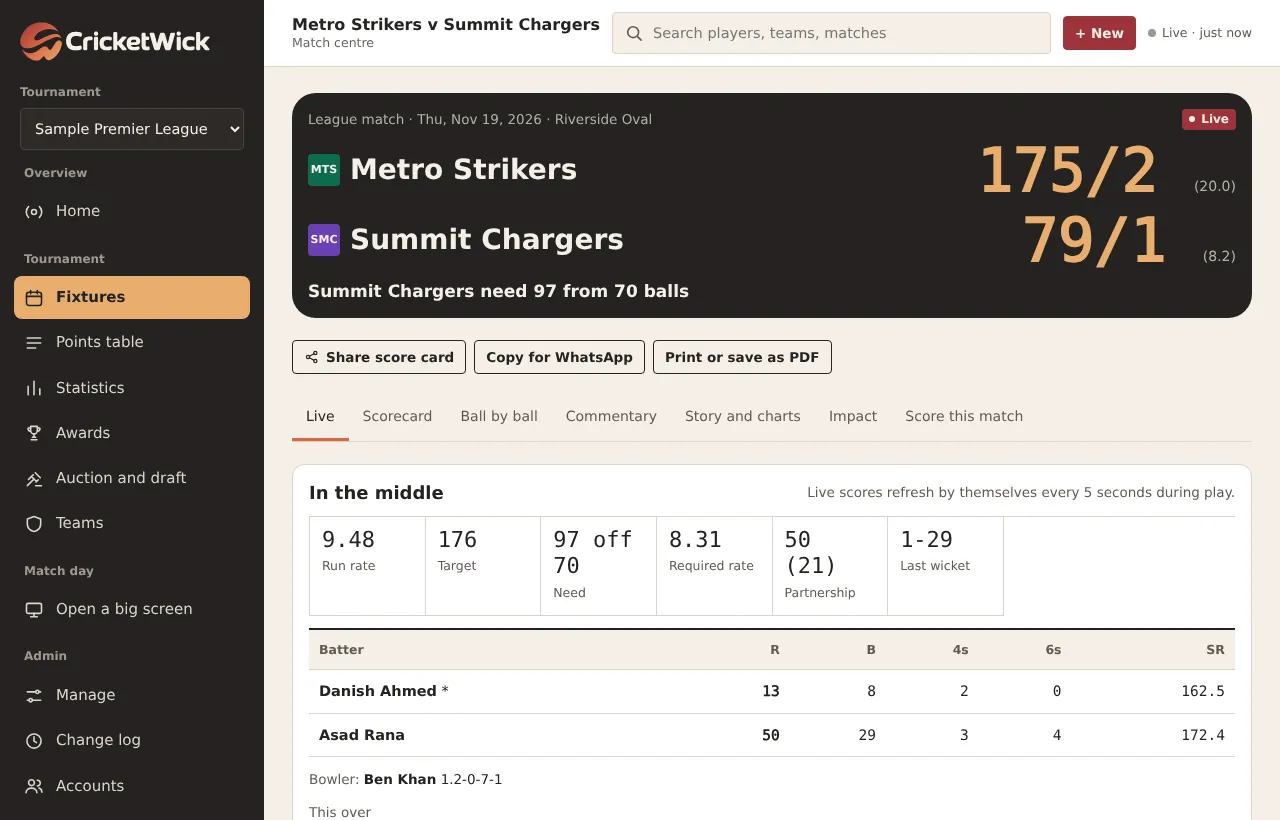
The live view: both scores, what the chase needs, the batters, the bowler and the current over.
The same match on a phone.
The tabs
Tab
What it shows
Live or Summary
The score now, or the result with the player of the match and a match report.
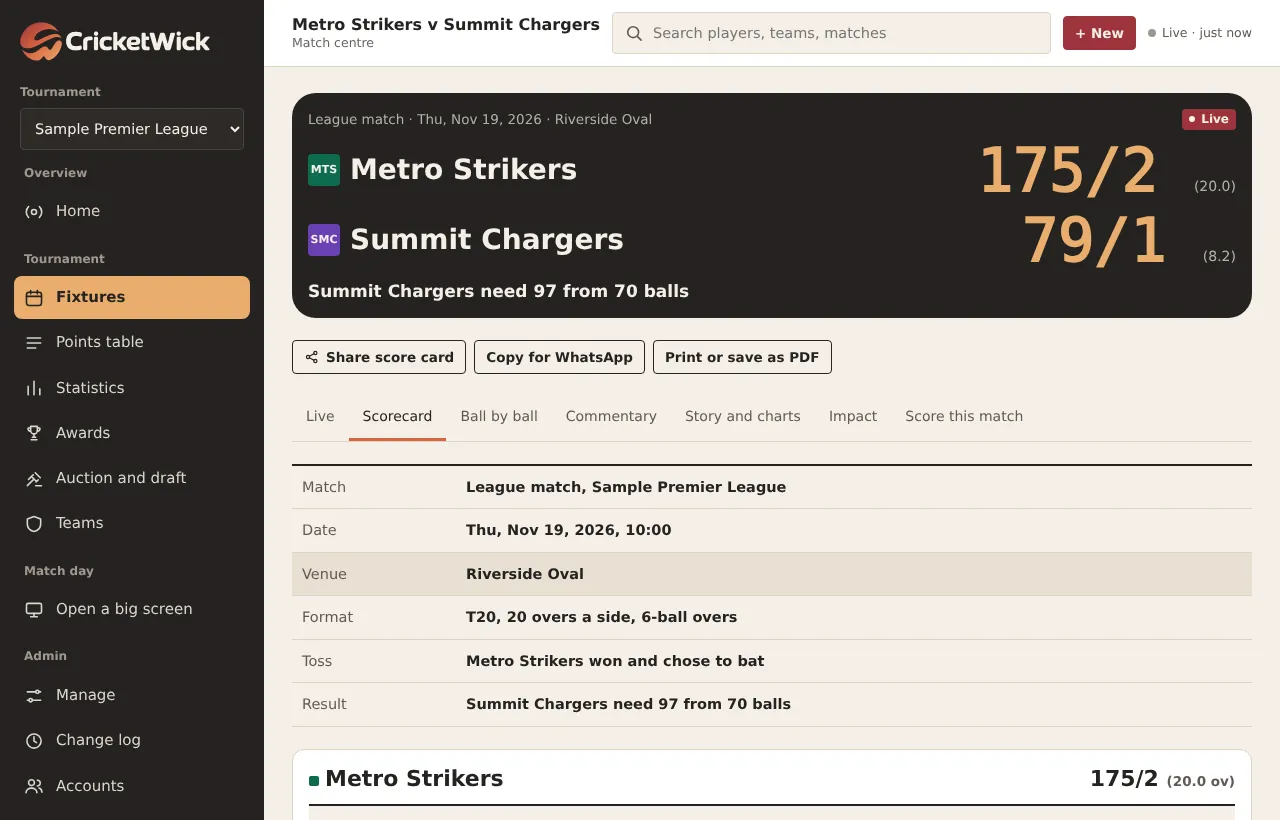
Scorecard
Batting and bowling figures, extras, fall of wickets and partnerships.
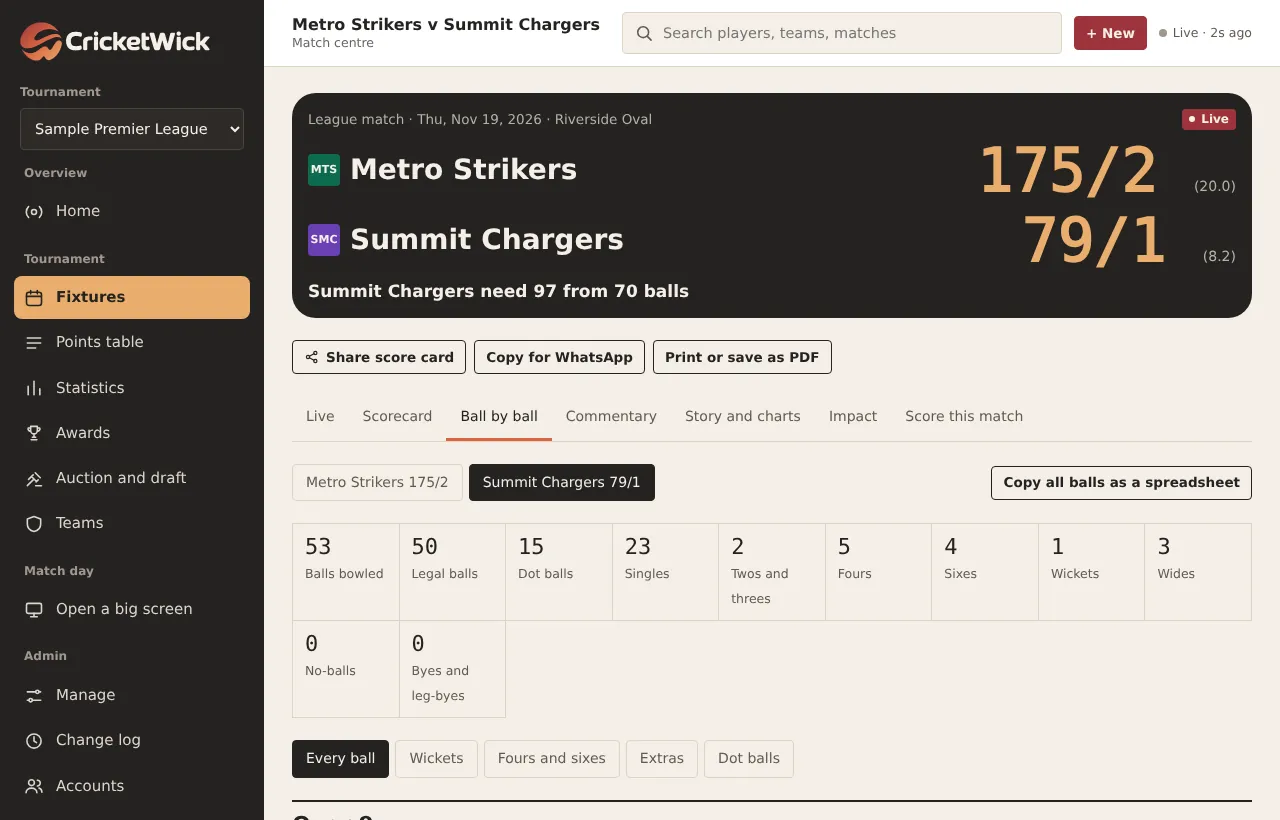
Ball by ball
Every delivery, over by over. Copy it into a spreadsheet if you need to.
Commentary
The match in words, written from the balls scored.
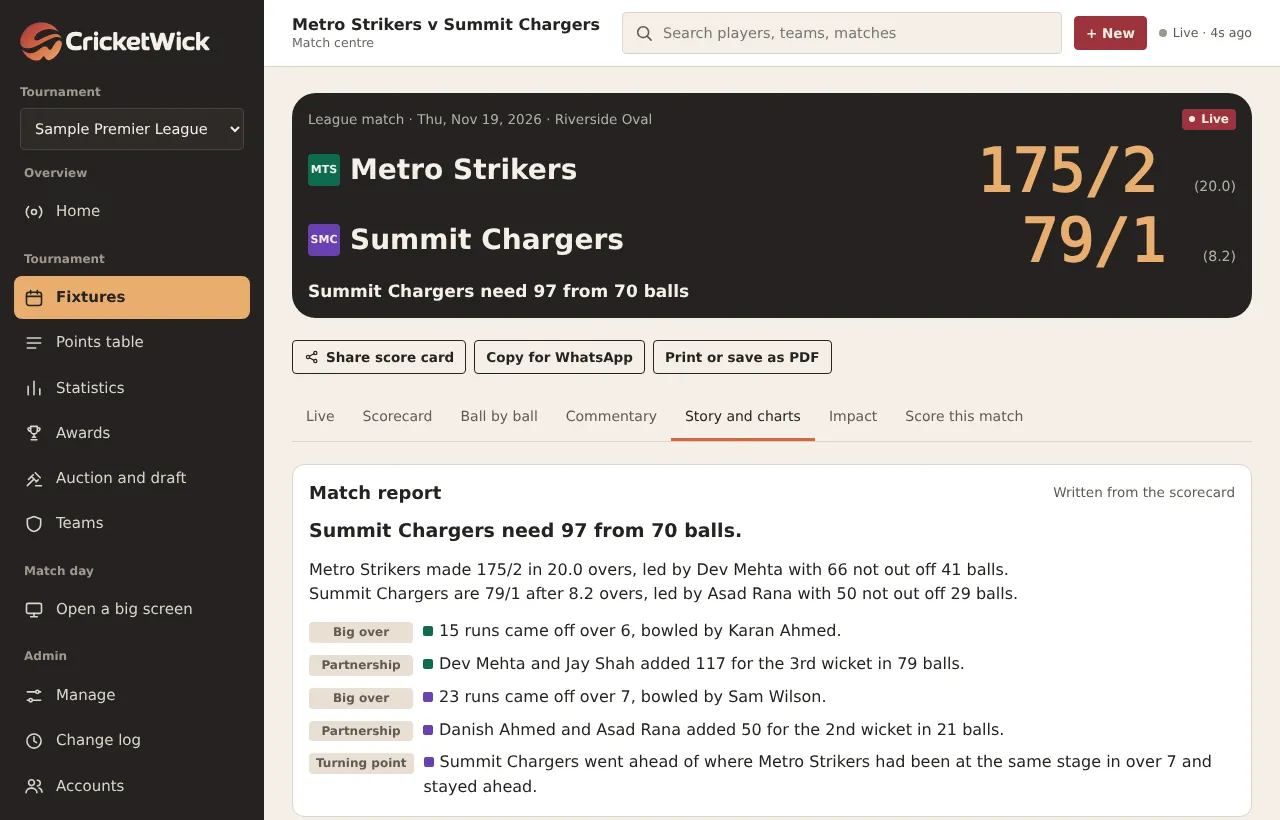
Story and charts
Run progression, runs per over, the chase rate, phases, partnerships and scoring zones.
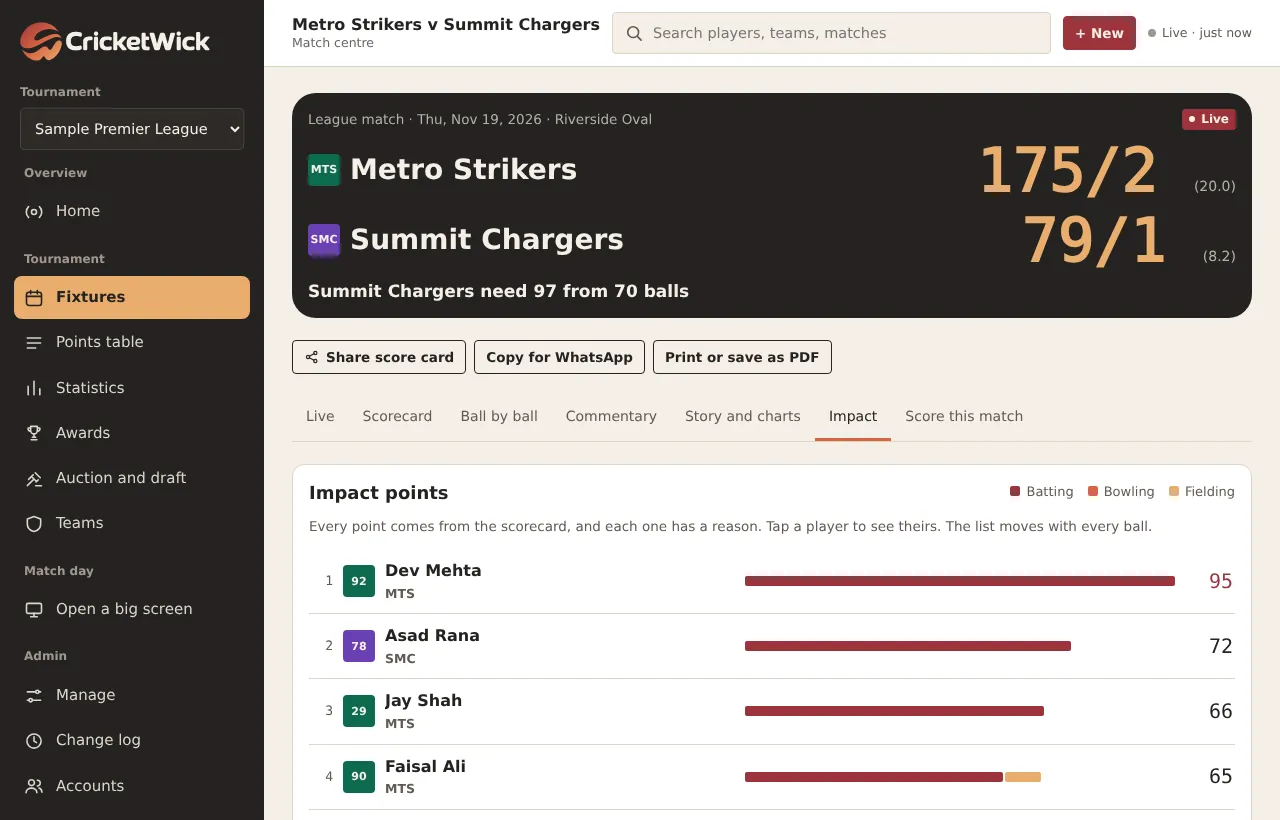
Impact
Impact points for every player. Tap a name for the reason behind each point.
cricketwick.com/app
The scorecard.
cricketwick.com/app
Ball by ball, with filters for wickets, fours and sixes, and extras.
cricketwick.com/app
Story and charts. The match report at the top is written from the scorecard.
cricketwick.com/app
Impact points: batting, bowling and fielding each have their own colour, and every point has a reason.
11Chapter 11 of 31
Finish and correct a match
Confirm the result, and fix a finished match the right way.
Who: Organiser
cricketwick.com/app
A finished match with the result and the player of the match.
Mistakes during play: tap Undo last until the wrong ball is gone, then score it again.
Mistakes after the match: the organiser opens the match and presses Reopen to correct the score.
Type the reason. It is required, and it is kept with the change.
Correct the balls, then confirm the result again.
Results and records
12Chapter 12 of 31
Points table and statistics
The table, net run rate and every player's numbers, with nothing to add up.
Who: Everyone
Nothing here needs entering. It all comes from the balls that were scored.
cricketwick.com/app
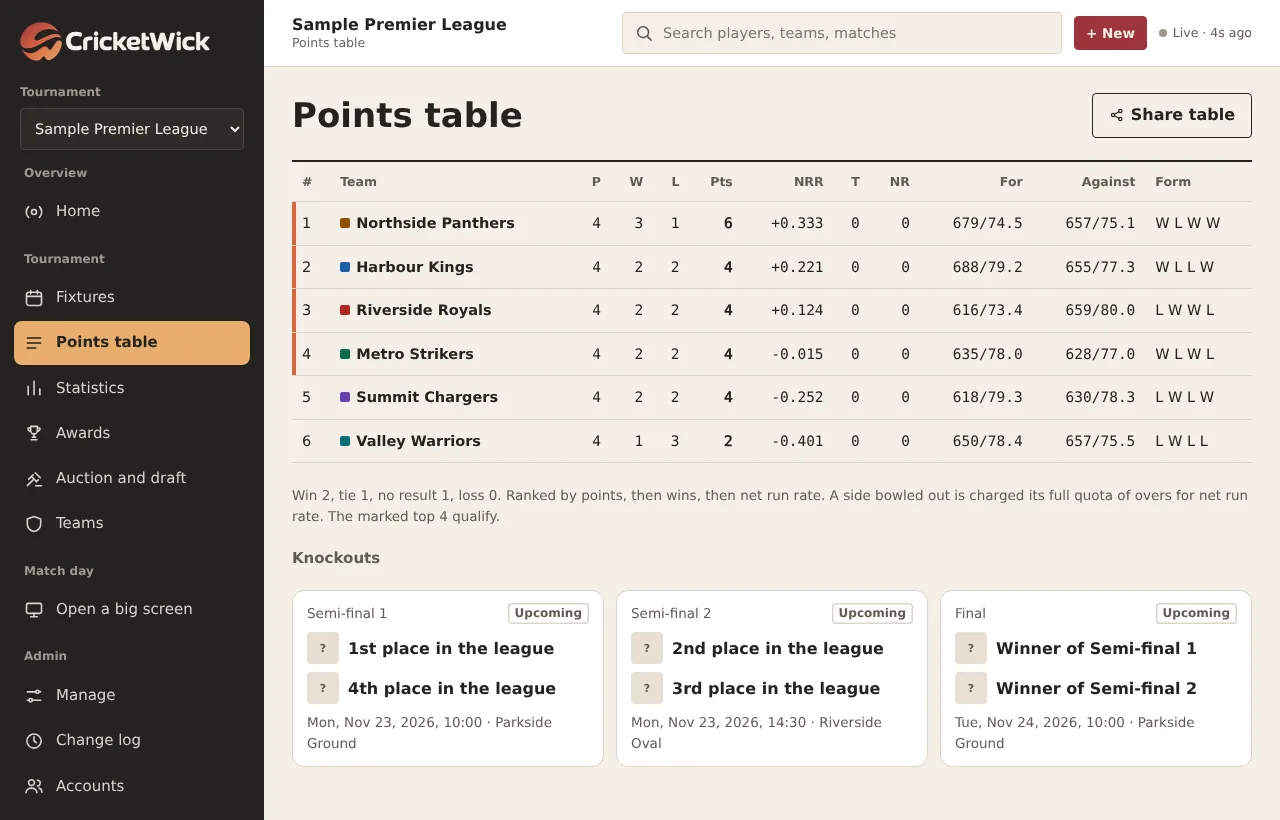
The points table with points and net run rate. The marked edge shows the sides that qualify.
Net run rate
The runs a team scores per over, minus the runs it concedes per over, across the tournament. It updates the moment a result is confirmed.
Who qualifies
Knockout fixtures that name a table position fill in by themselves.
The table on a phone.
cricketwick.com/app
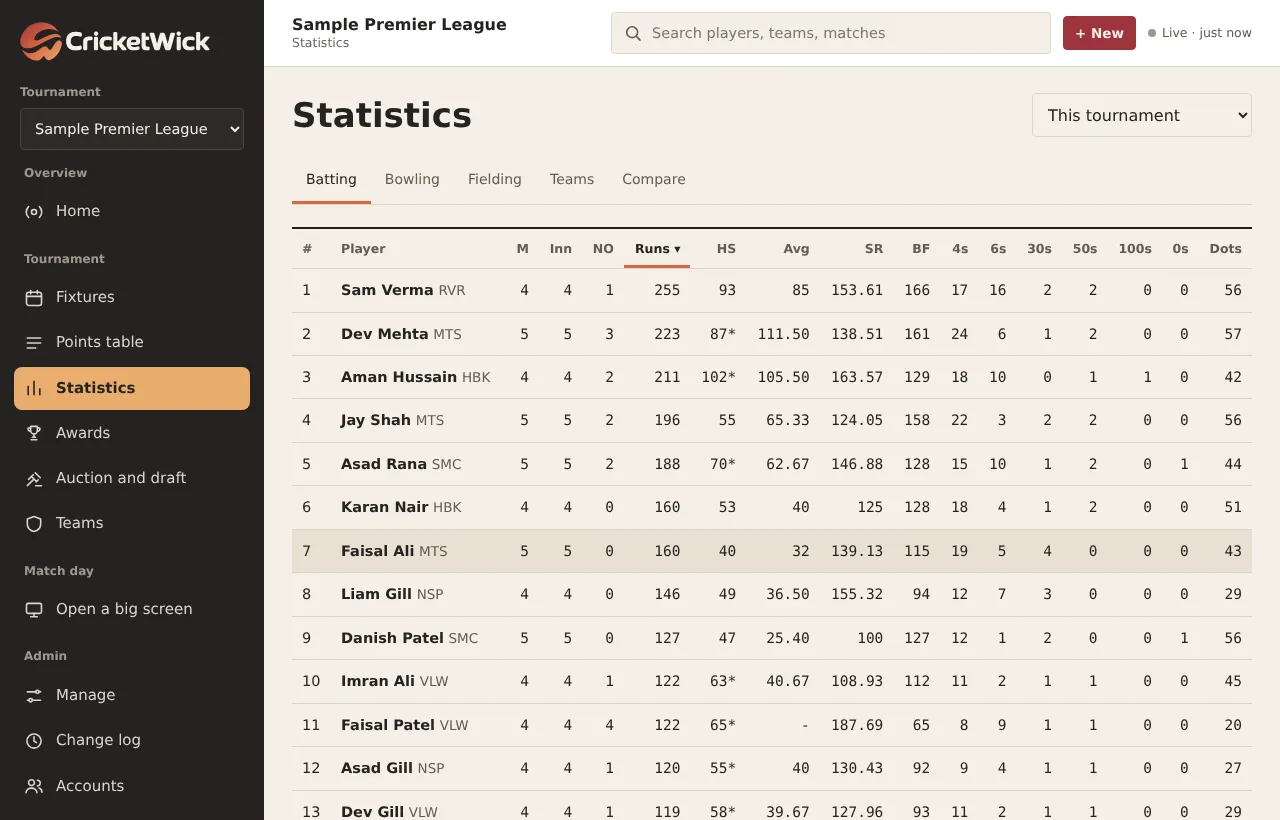
Statistics: batting, bowling, fielding and team tabs, and Compare for two players side by side. Tap a column heading to sort.
13Chapter 13 of 31
Awards and impact points
Player of the tournament, team of the tournament and your own awards.
Who: EveryoneOrganiser
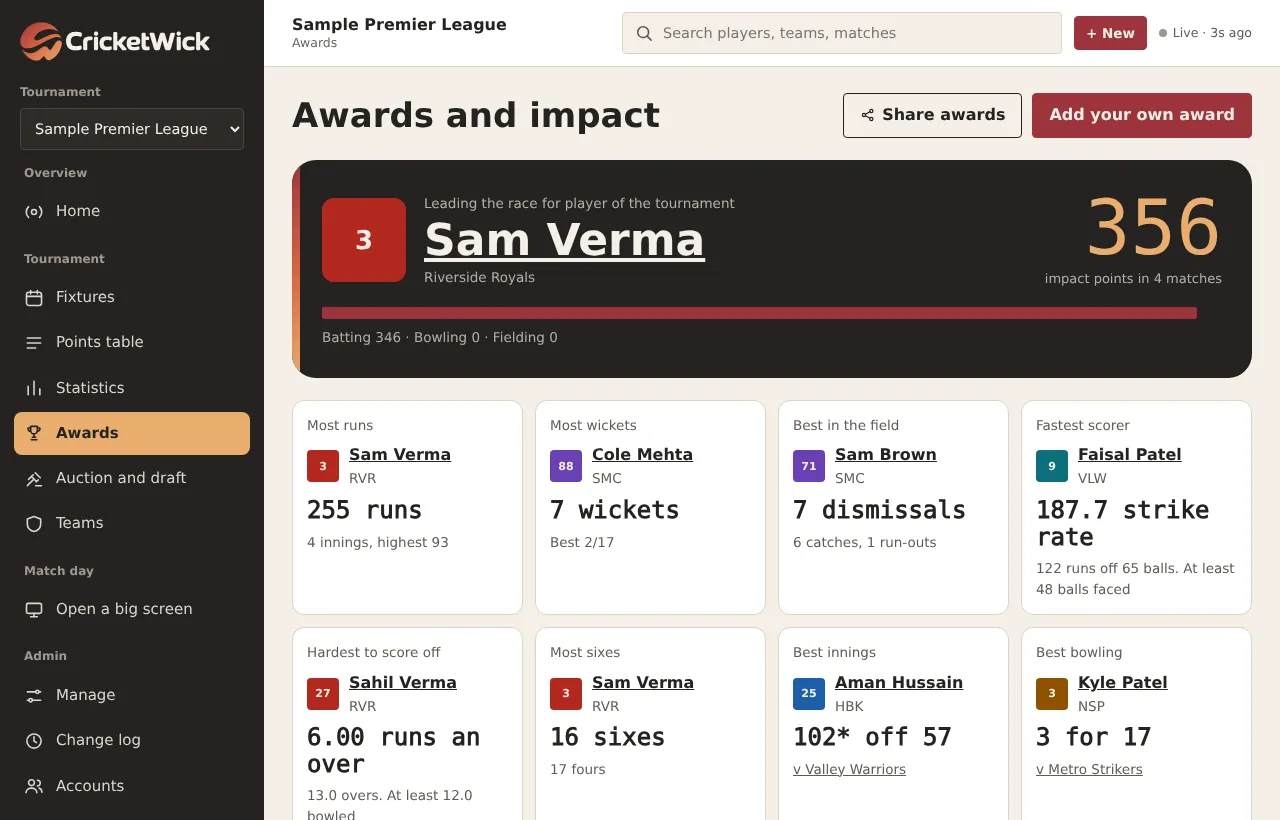
Every ball is recorded, so awards come from the scorebook rather than from memory. Impact points weigh runs, wickets, catches, economy and the moment they came in.
cricketwick.com/app
The Awards page: the race for player of the tournament, the leaders in each category and a team of the tournament.
Open Awards to see the race for player of the tournament.
As organiser, press Add your own award for anything the numbers cannot decide, such as spirit of cricket.
Press Share awards for a picture to send to the team groups.
14Chapter 14 of 31
Past records from another app
Bring in career and team records from the scoring app you used before.
Who: Organiser
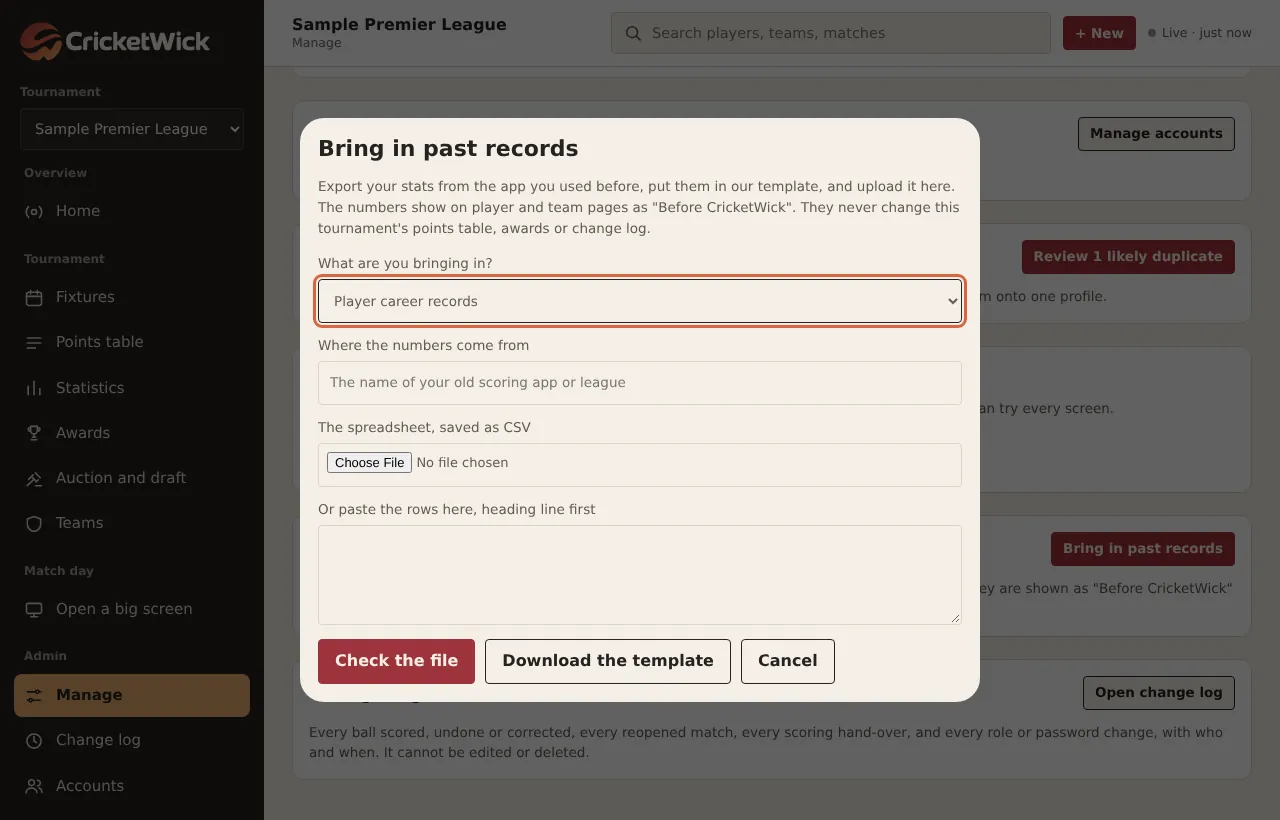
Moving from another scoring app? Bring your players' and teams' past records with you. They show on each player and team page as Before CricketWick, marked as imported, and they never change this tournament's table, awards or change log.
Export your statistics from your old app as a spreadsheet.
Open Manage and press Bring in past records.
Choose Player career records or Team records, and type where the numbers come from.
Press Download the template if your file's headings need matching, then save your file as CSV.
Choose the file or paste the rows, and press Check the file.
Read the check screen: who matched by name, who is new, and who was skipped. Then press Save.
cricketwick.com/app
Bring in past records. Up to 400 rows per file.
Screens, sponsors and auctions
15Chapter 15 of 31
Big screens and TVs
Turn any TV or projector into a live scoreboard and run it from your phone.
Who: Organiser
Create a screen
Open Manage, find Big screens and press Add a screen.
Give it a name, such as Pavilion TV, and choose what it shows: the live match picked automatically, one chosen match, the points table, fixtures, a rotation, the leaders, or the auction.
Tick Run sponsor slides between the cricket and Animate fours, sixes, wickets and milestones if you want them.
Press Create screen and code.
cricketwick.com/app
Adding a screen.
Connect a TV
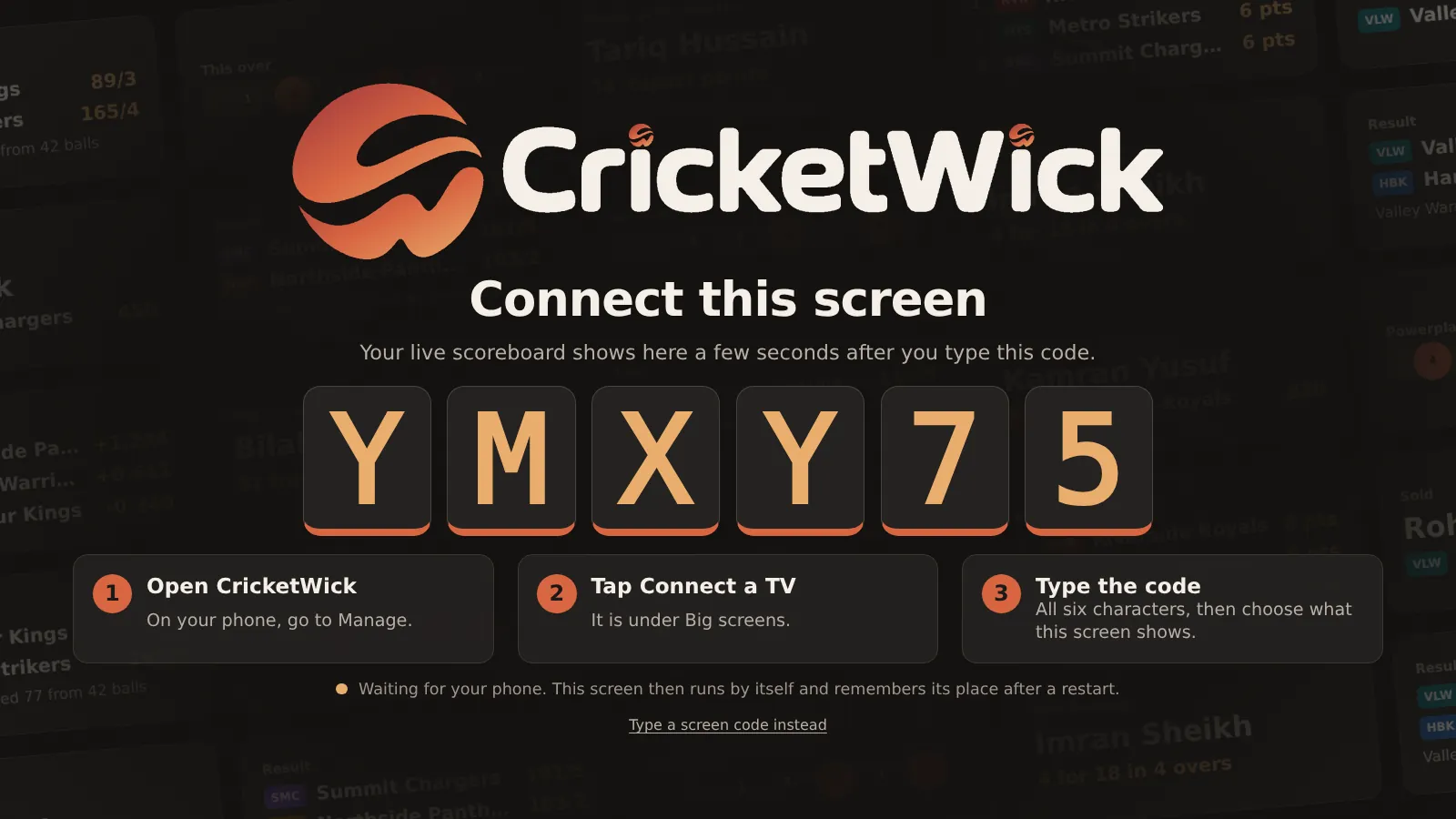
On the TV or projector, open cricketwick.com/tv in its web browser, or open the CricketWick TV app.
The TV shows a six-character code, such as K7M2QX. Letters and numbers that look alike from across a room are never used.
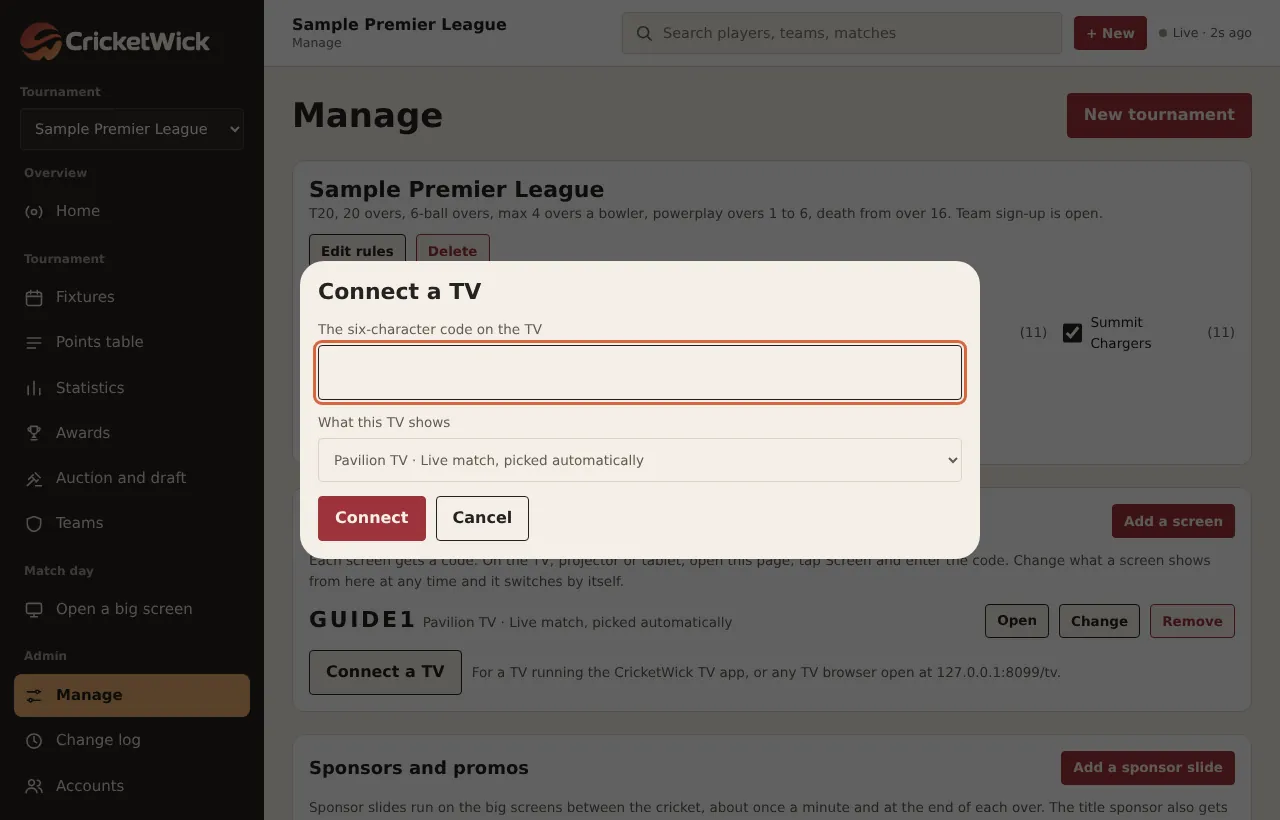
On your phone, open Manage and press Connect a TV.
Type the six characters (capitals do not matter) and choose the screen.
The TV switches over by itself within a few seconds and remembers its screen after a restart.
cricketwick.com/app
The TV waiting for its code.
cricketwick.com/app
Typing the code on your phone.
cricketwick.com/app
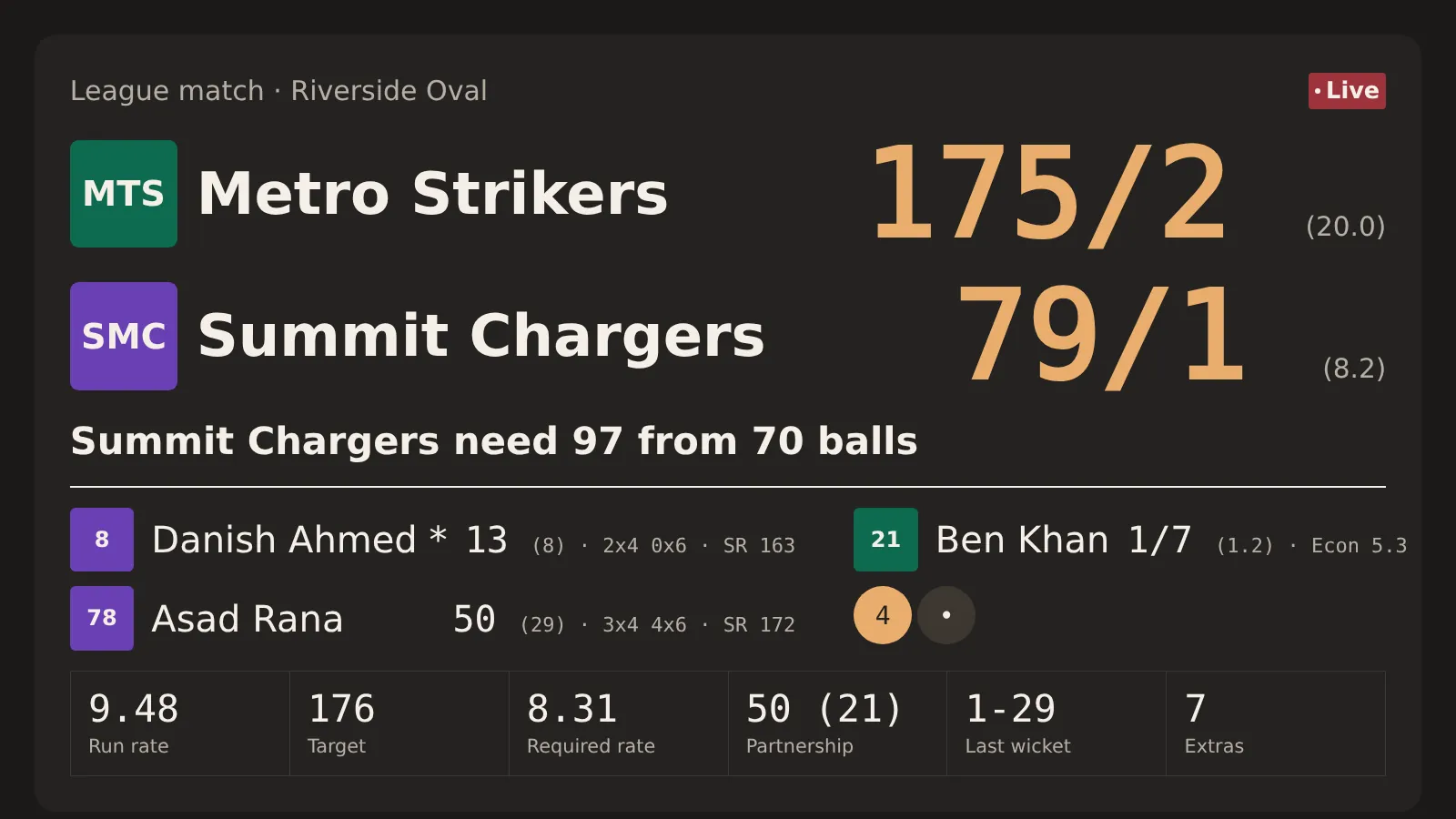
The scoreboard on a big screen. Fours, sixes, wickets, fifties, hundreds and hat-tricks take over the screen for a moment.
16Chapter 16 of 31
Sponsors and promos
Image and video slides that run on the big screens between play.
Who: Organiser
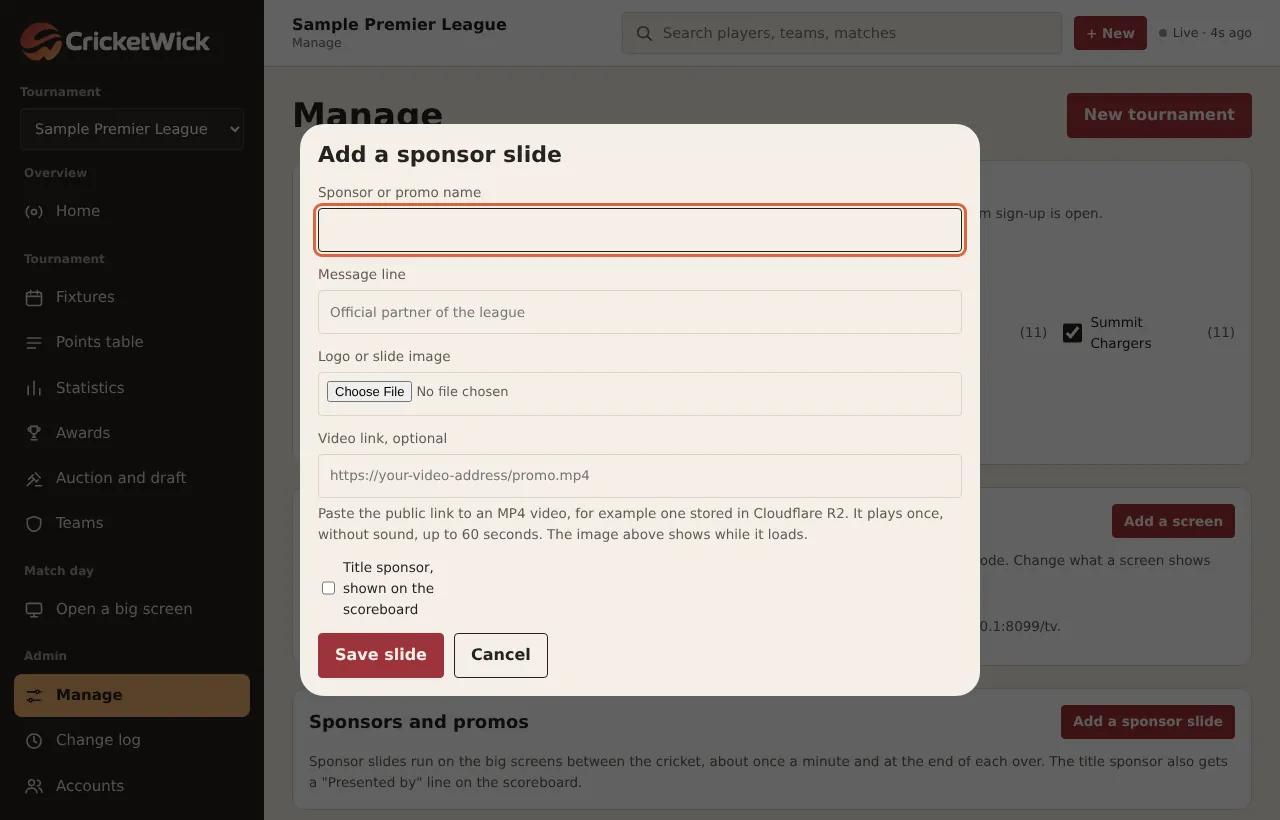
Open Manage, find Sponsors and promos and press Add a sponsor slide.
Type the sponsor's name and a message line, and choose a logo or slide image.
For a video, paste its public link into Video link (see below).
Tick Title sponsor for your main sponsor. Their name appears as "Presented by" on the scoreboard.
Press Save slide. Add as many slides as you like; they take turns.
cricketwick.com/app
A sponsor slide with an image and an optional video link.
Videos
Video files are too heavy to store in your site's database, so you keep them somewhere built for video, such as a Cloudflare R2 bucket with public access switched on, and paste the link.
The link
Must start with https:// and end in .mp4 or .webm.
How it plays
Once, full screen, without sound, up to 60 seconds, with the sponsor named along the bottom. Then the scoreboard comes back.
If it fails
The image slide shows instead.
17Chapter 17 of 31
Auctions and drafts
Build squads live with team budgets, owners bidding from their phones and the room watching on a big screen.
Who: OrganiserTeam manager
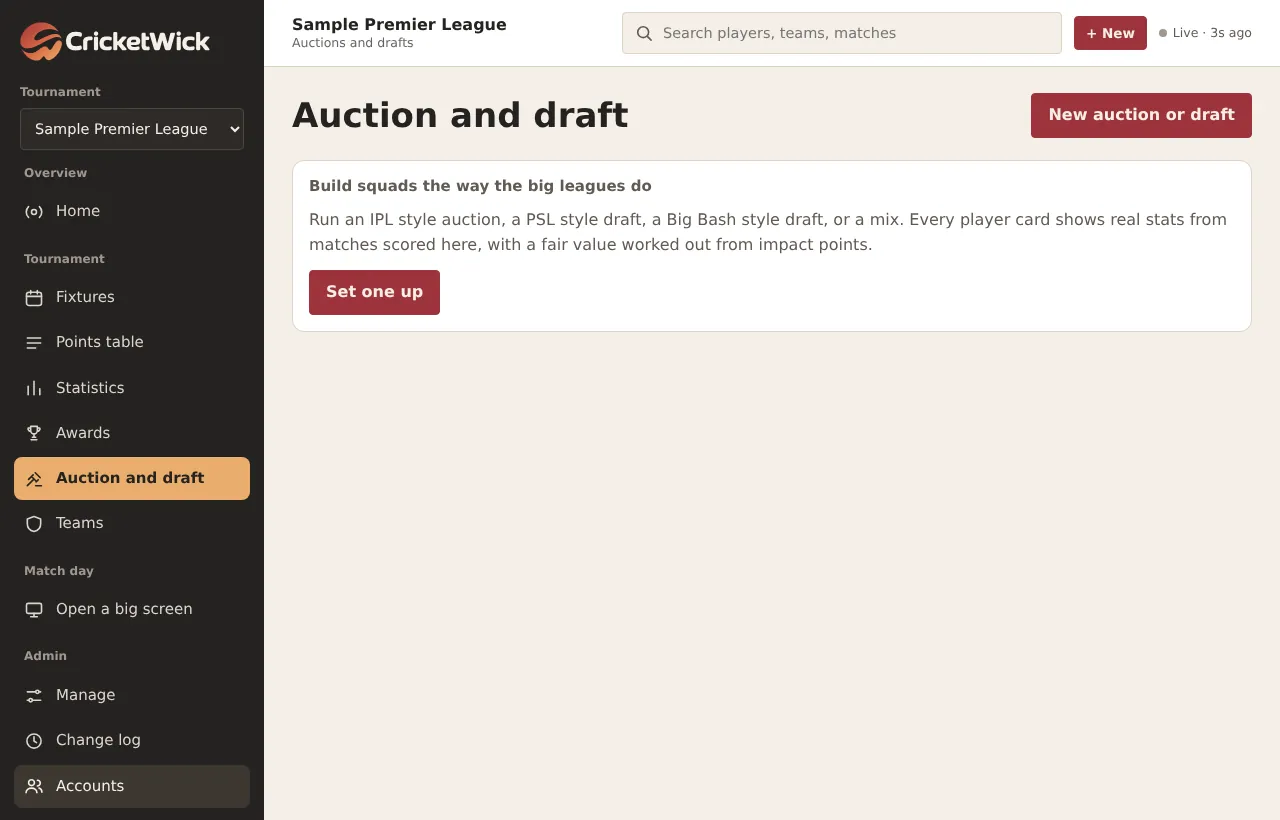
Open Auction and draft and press New auction or draft.
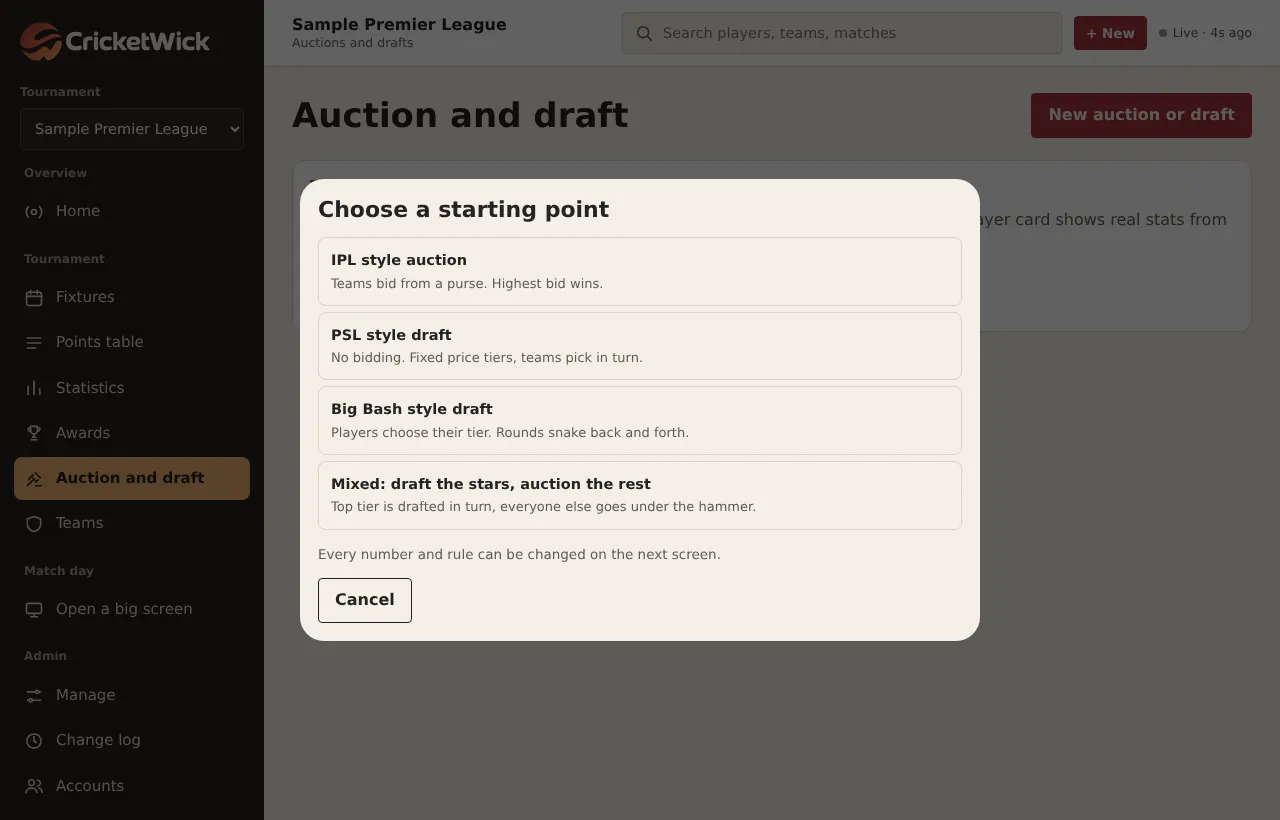
Choose a starting point: an IPL style auction, a PSL style draft, a Big Bash style draft, or a mix. Every number can be changed.
Set the purse, tiers and their prices, squad size, bid step, timer and retentions, then save.
On the Pool tab, add every player. Tiers and a fair value are suggested from impact points. Players can also ask to enter, and you approve them.
On the Room tab, press Run a practice to rehearse. A practice resets everything afterwards.
Press Start for real, then Bring up the next player.
cricketwick.com/app
The starting points.
Budgets that hold
A bid is refused if the team could not then afford to fill its remaining places.
Owners on their phones
Each owner sees one Bid button for their own team, can shortlist players and set a private limit, and can let CricketWick bid for them up to that limit.
On the big screen
Set a screen to the auction to show the player, the bid, the timer and the SOLD moment in the room.
Afterwards
Squads fill in, players can be emailed their new team, and a value report shows what each player delivered for the price.
cricketwick.com/app
The Auction and draft page.
Umpires
18Chapter 18 of 31
Find and book an umpire
Search umpires by town, format, date and rate, then send a booking request.
Who: OrganiserTeam manager
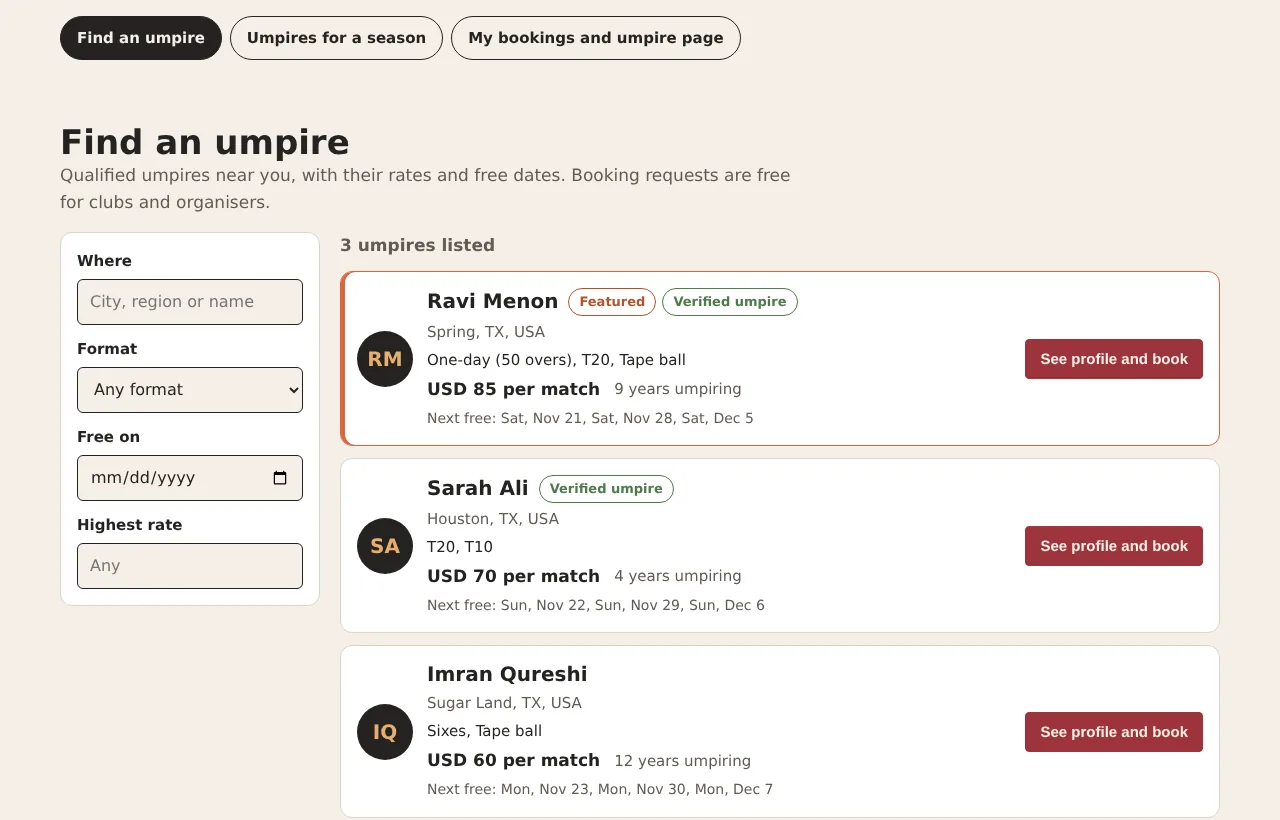
The Umpires page lists qualified umpires with their rates and the dates they are free. Asking is free. You pay the umpire directly, as you agree between you.
Open Umpires from the website menu, or go to cricketwick.com/umpires.html.
Use the filters on the left: Where (town, region or name), Format, Free on (a date) and Highest rate.
Press See profile and book on the umpire you want.
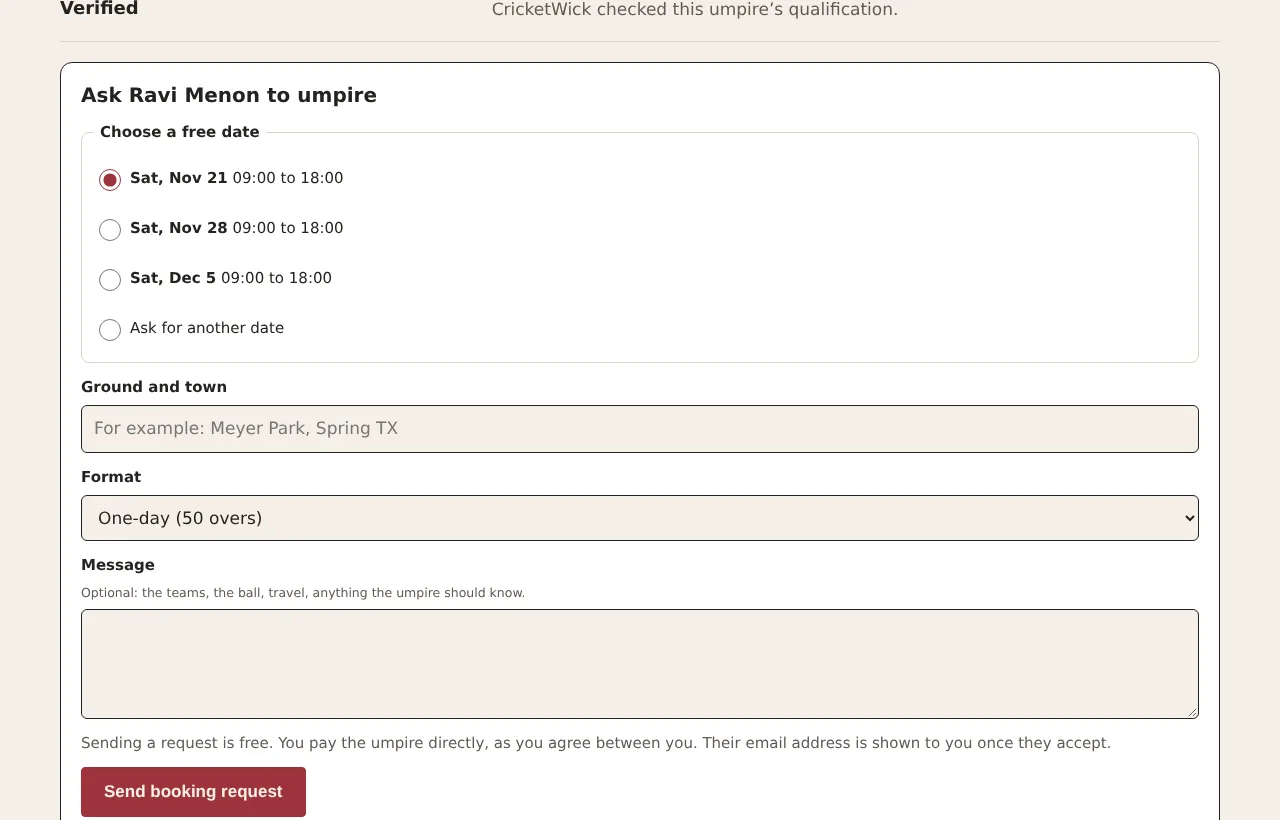
Choose one of their free dates, or Ask for another date and type the date and times.
Type the Ground and town, choose the format, add a message if you want, and press Send booking request.
Watch My bookings and umpire page. When the umpire accepts, their email address appears there and you get an email too.
cricketwick.com/umpires
Featured umpires come first, then verified umpires, then the ones with the most matches through CricketWick.
cricketwick.com/umpires
Pick a free date, or ask for another one.
Cancel
Press Withdraw request before they answer, or Cancel booking after. The umpire is emailed.
After the match
Press Mark as played on the day or after. Played matches count on the umpire's profile.
19Chapter 19 of 31
Offer your services as an umpire
List yourself, add the dates you are free, and accept or decline requests.
Who: Umpire
Listing is free. Clubs find you by town, format and date and send requests that you choose to accept. When a booking made through CricketWick is played, CricketWick keeps a small fee, 10% of your rate unless your page shows another figure.
Log in, open Umpires and press My bookings and umpire page.
Under Offer your services as an umpire, fill in the name clubs see, your town, the formats you umpire, your qualifications, your rate and how it is charged.
Leave Show my profile to clubs ticked and press Create my umpire profile.
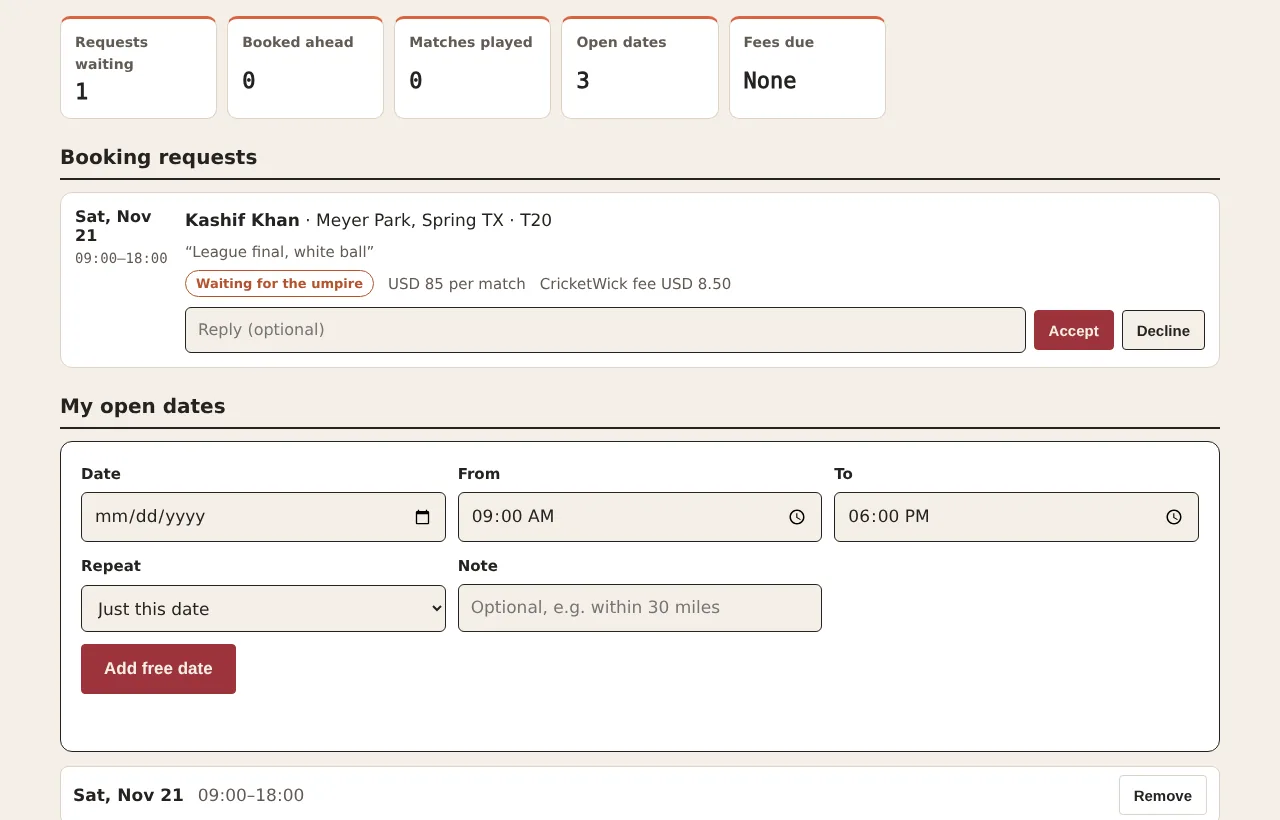
Under My open dates, choose a date and times. Use Repeat to add the same day for several weeks at once, then press Add free date.
When a request comes in you get an email. Open the page, type a reply if you want, and press Accept or Decline.
cricketwick.com/umpires
Your page: requests, bookings, matches played, open dates and any fees due.
A booked date
Cannot be removed. Cancel the booking first; the club is emailed.
Hide yourself
Untick Show my profile to clubs and save. Your bookings stay.
Fees
Shown on each booking. They fall due once the match day comes. Press Pay fees on your page.
20Chapter 20 of 31
Verified badge, featured spot and season officials
The paid extras for umpires, and how leagues get umpires for a whole season.
Who: UmpireOrganiser
Extra
What you get
How
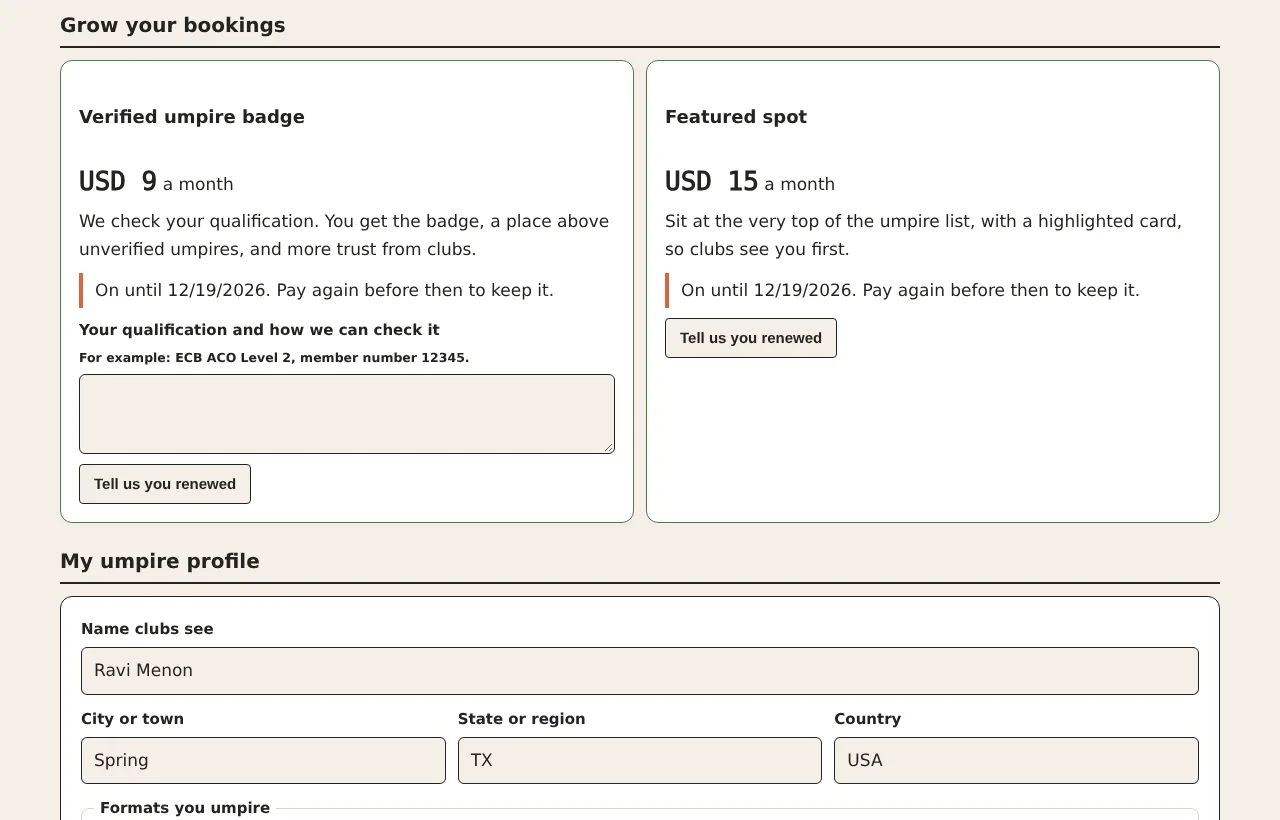
Verified umpire badge
A badge on your profile and a place above unverified umpires. We check your qualification.
Pay with Pay under Grow your bookings, then type your qualification and press Send for checking.
Featured spot
The top of the list, with a highlighted card.
Pay, then press Ask for a featured spot.
Umpires for a season
For leagues: we find, book and schedule umpires for every match.
Open the Umpires for a season tab, fill in the dates, place and number of matches, and press Ask for a quote.
cricketwick.com/umpires
Prices are set by CricketWick and shown on your page.
Badges and featured spots last 30 days at a time and are switched on once the payment is checked. Season quotes arrive by email and appear on your bookings page; assigned matches show there as booked.
21Chapter 21 of 31
The umpire desk (site owner)
Approve badges and featured spots, collect fees, quote seasons and set prices.
Who: Organiser
Only the site owner sees the Desk tab on the Umpires page.
Make a payment link for each price in Stripe (Payment Links, then New) or PayPal.
On the desk, under Prices and payment links, set the booking fee percent and the badge and featured prices, paste the links and press Save prices and links.
When a payment arrives, find the umpire under Waiting for you and press Approve badge, 30 days or Feature for 30 days. They are emailed.
Under Booking fees owed, press Paid when a fee comes in, or Waive.
Under Season requests, write a quote, set the status to Quote sent and press Save; it is emailed. Then use Assign an umpire to a match for each match.
cricketwick.com/umpires
Totals at the top, then everything waiting for you.
Grounds and facilities
22Chapter 22 of 31
Find a ground, nets or an indoor centre
Search facilities by ZIP code, city or country, filter by what you need, and ask to book.
Who: OrganiserTeam managerPlayer
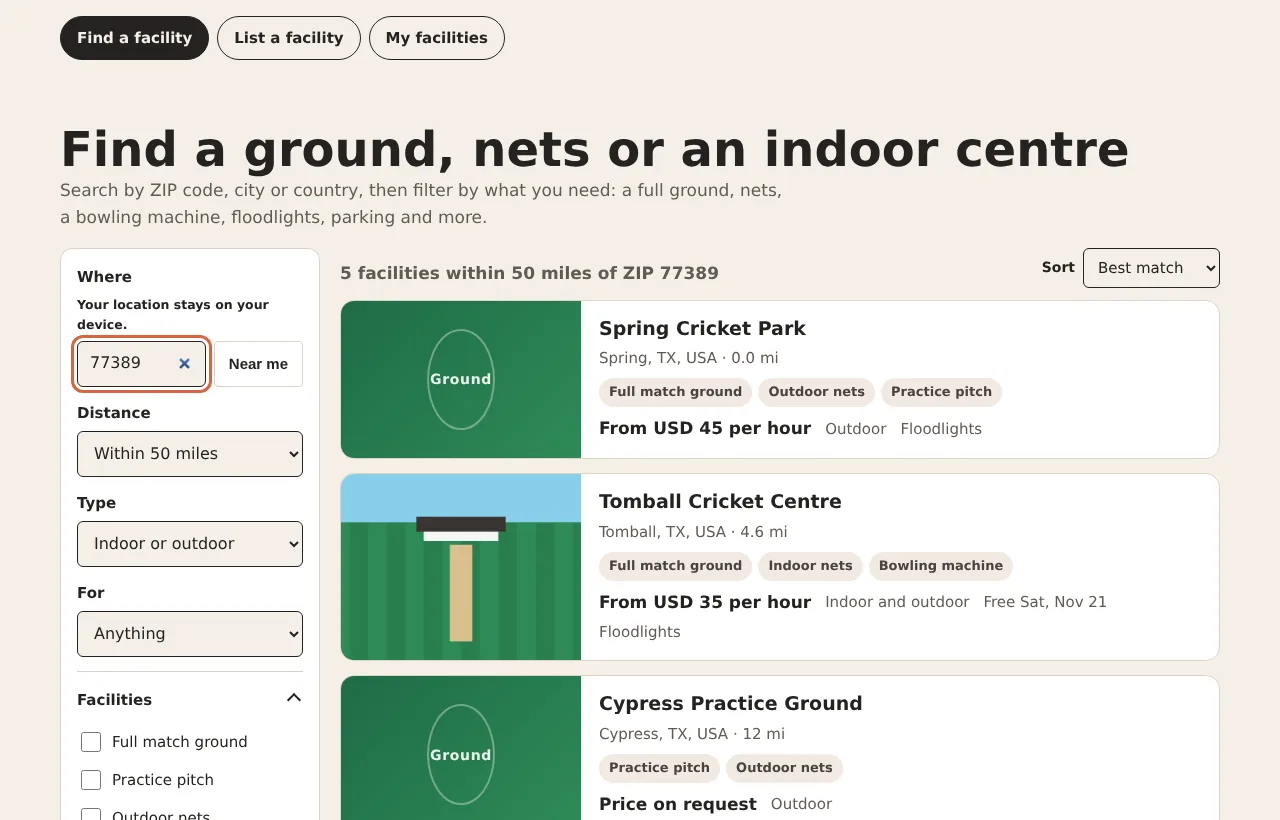
The Grounds and facilities page lists cricket grounds, practice nets and indoor centres with their facilities, pitches, amenities, prices and free times.
Open Grounds and facilities from the website menu, or go to cricketwick.com/grounds.html.
In Where, type a US ZIP code to see everything within the Distance you choose, or type a city, state or country. Or press Near me.
Narrow it down with Type (indoor or outdoor), For (matches, practice, nets, coaching, events) and the Facilities, Pitch and Amenities ticks.
Use Sort to put the nearest or the cheapest first, then press a card to open the facility.
cricketwick.com/grounds
Featured and verified venues come first, then the nearest.
cricketwick.com/grounds
Photos, price, opening hours and the buttons to get there or get in touch.
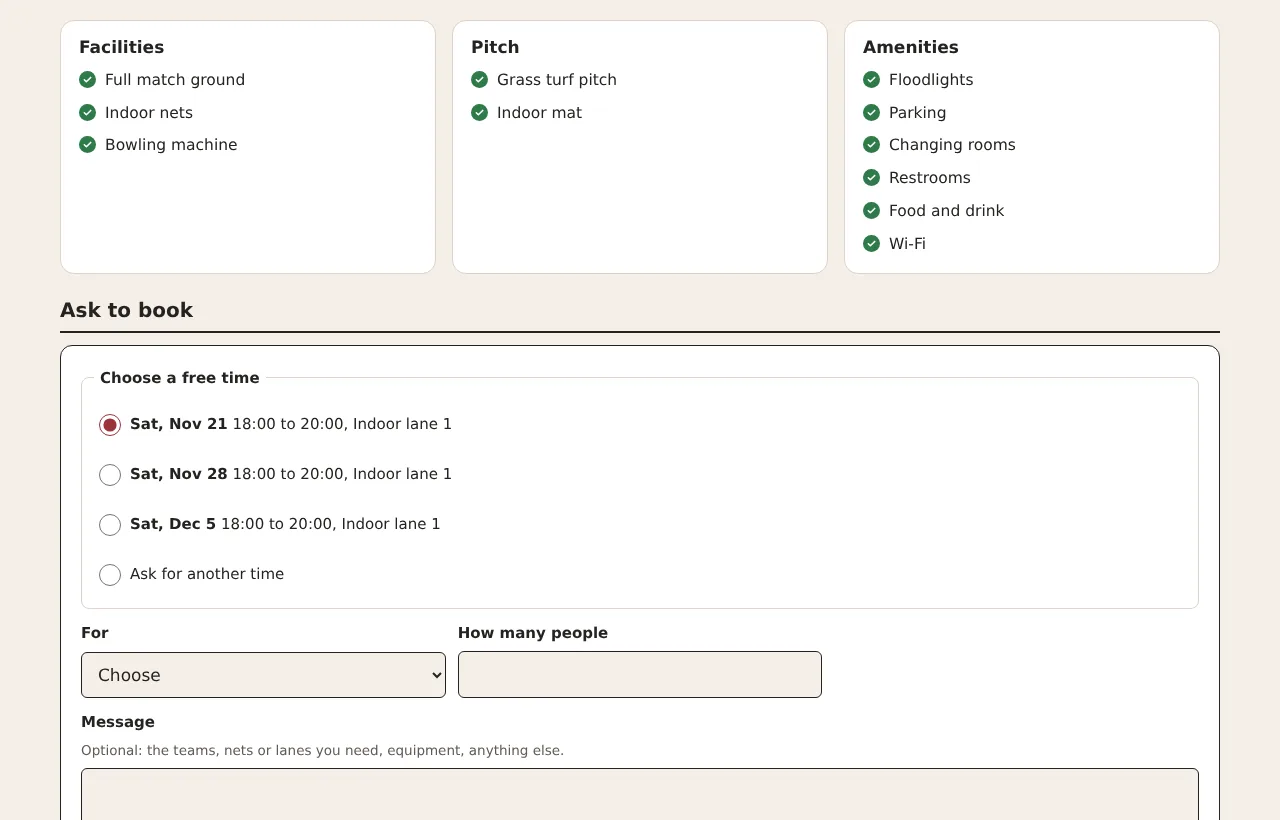
Ask to book
On the facility page, under Ask to book, choose one of its free times, or Ask for another time.
Choose what it is For, add How many people and a message if you want, and press Send booking request.
Watch My facilities, under Facilities I asked to book. When the facility accepts, its email address appears there and you get an email too.
cricketwick.com/grounds
Booking requests are free. You pay the facility directly.
Something wrong?
Open Report a problem with this listing at the bottom of the page and say what has changed.
Use it in fixtures
When you add or edit a match, the Venue box suggests grounds from the directory as you type.
23Chapter 23 of 31
List or claim your facility
Add your ground, nets or indoor centre for free, or claim the listing that is already there.
Who: Organiser
Listing is free. Clubs find your facility by ZIP code, city and what it offers, and can send you booking requests.
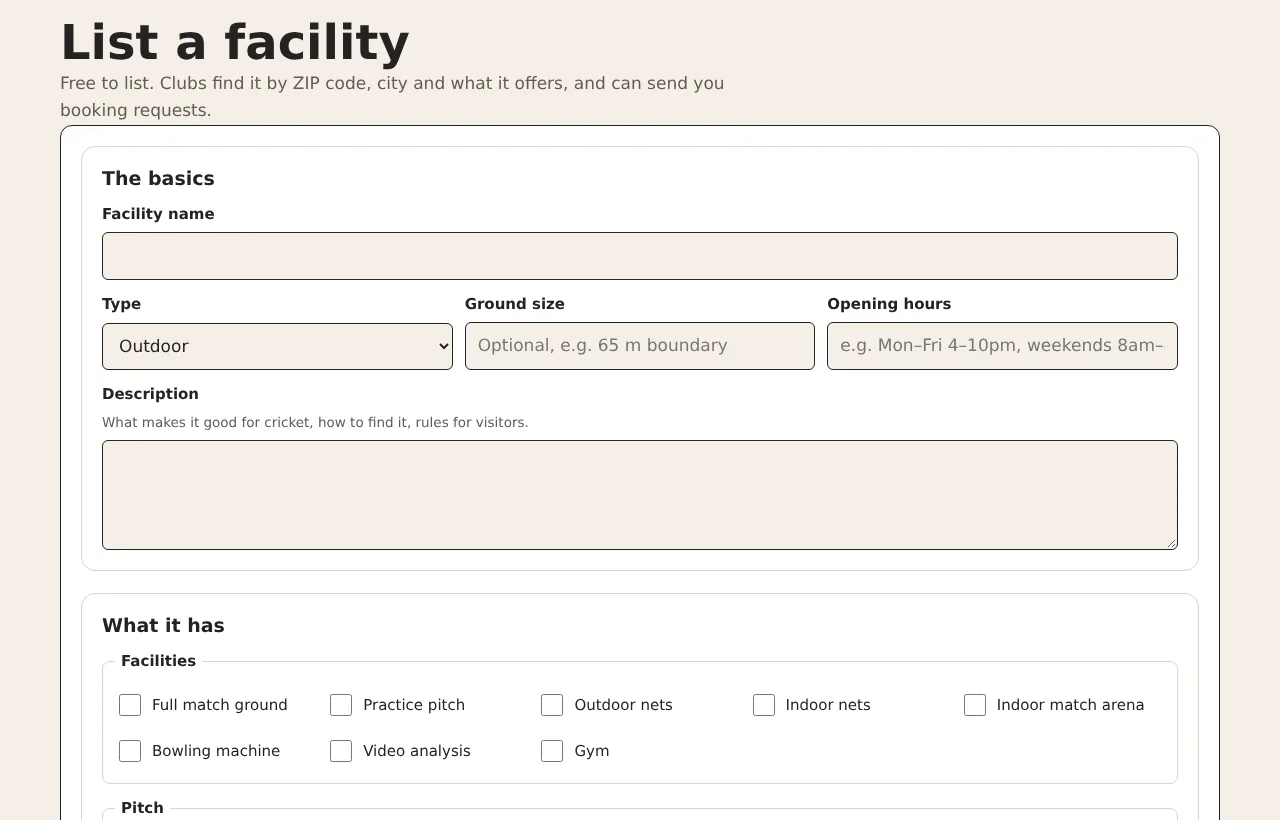
Log in, open Grounds and facilities and press List a facility.
Under The basics, type the facility name and choose the Type. Add the size, opening hours and a description if you want.
Under What it has, tick the facilities, pitch types, amenities and what it is good for.
Under Where it is, type the address, city, state, ZIP or postcode and country. For a US address the map position comes from the ZIP code; at the facility itself you can press Use my current spot for the exact place.
Under Price and contact, add the price from, how it is charged, and the public phone, email, website or online booking page.
Under Photos, choose up to six photos, then press Publish the listing.
cricketwick.com/grounds
Large photos are made smaller on your device before they upload.
24Chapter 24 of 31
Manage your facility and bookings
Add free times, answer booking requests, keep details up to date, and get verified or featured.
Who: Organiser
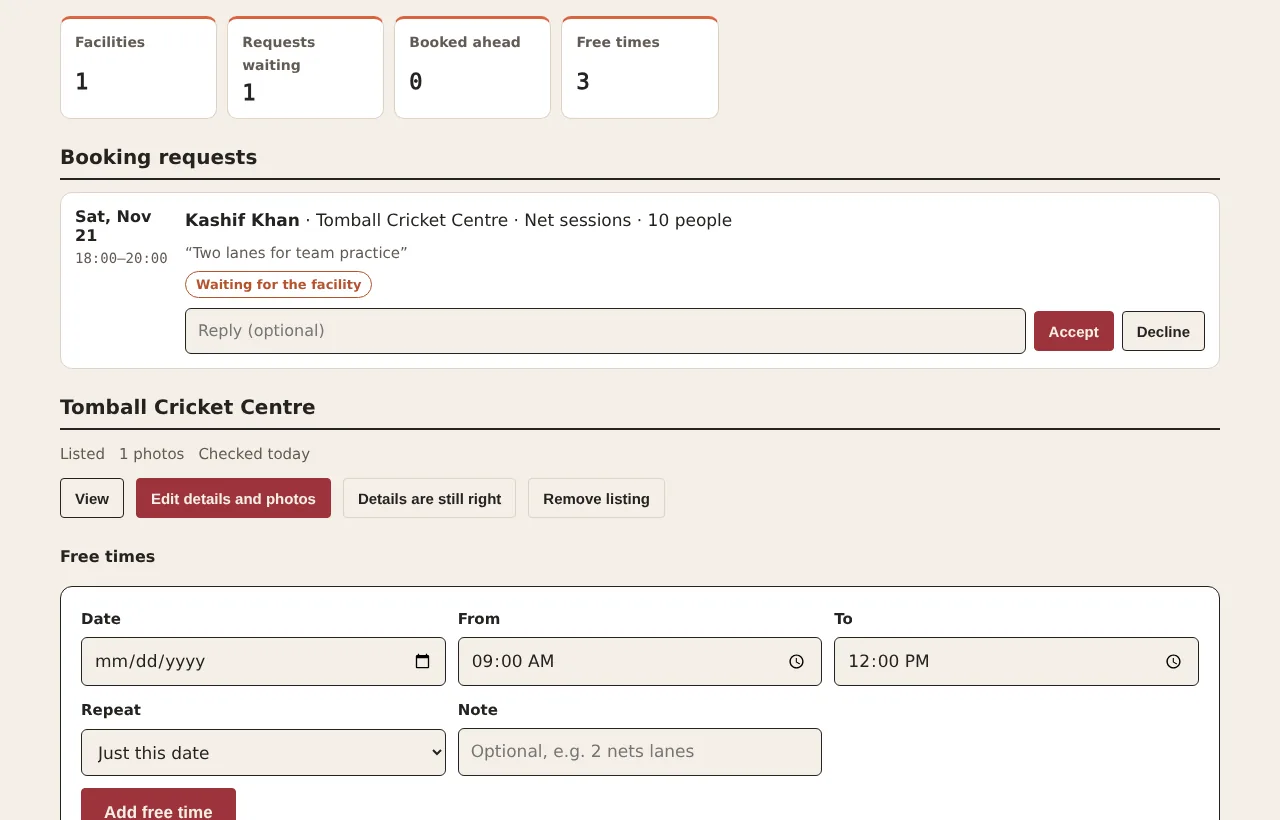
Open Grounds and facilities and press My facilities.
Under your facility, in Free times, choose a date and times. Use Repeat to add the same slot for several weeks, then press Add free time.
When a request arrives you get an email. Under Booking requests, type a reply if you want and press Accept or Decline.
Every few months, press Details are still right, or Edit details and photos if something changed. The listing shows when it was last checked.
cricketwick.com/grounds
Requests, bookings and free times for every facility you manage.
After you accept
You and the club each see the other’s email address to confirm the details and payment. If two clubs asked for the same time, the other is declined and told.
Verified venue badge
Pay with the button under Grow your bookings, say how we can check the facility and press Send for checking.
Featured spot
Pay, then press Ask for a featured spot. Featured venues come first in nearby searches.
Remove the listing
Press Remove listing, then Yes, remove it. Open requests are cancelled and the clubs are told.
25Chapter 25 of 31
The facilities desk (site owner)
Import many facilities from a spreadsheet, approve claims, handle reports, and switch on badges and featured spots.
Who: Organiser
Only the site owner sees the Desk tab on the Grounds and facilities page.
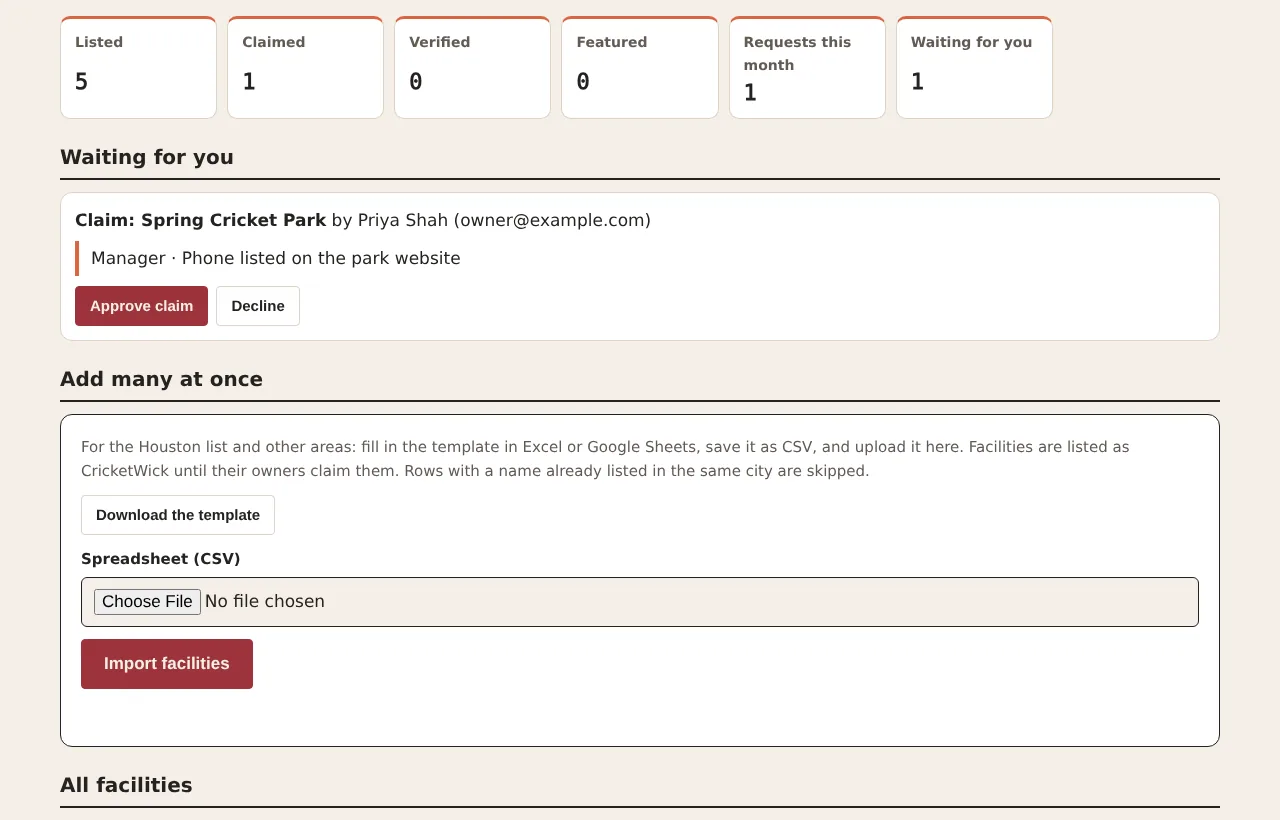
Add many facilities at once
On the desk, under Add many at once, press Download the template.
Open it in Excel or Google Sheets. Fill in one facility per row under the header. For lists such as facilities and amenities, put a semicolon between items, using the names listed at the bottom of the template.
Delete the example row, then save the file as CSV.
Back on the desk, choose the file under Spreadsheet (CSV) and press Import facilities.
cricketwick.com/grounds
Totals at the top, then everything waiting for you.
Everyday jobs
Claims
Check the role and how to verify, then press Approve claim or Decline. They are emailed either way.
Reports
Press Open listing, fix it with Edit under All facilities if needed, then Mark as handled.
Badges and featured spots
When a payment arrives, press Approve badge, 30 days or Feature for 30 days.
Prices and payment links
Set the monthly prices, paste your Stripe or PayPal payment links and press Save prices and links.
Hide or hand back
Hide takes a listing out of search. Release to CricketWick takes it back from its manager.
Running your site
26Chapter 26 of 31
Accounts and roles
Give organiser access, reset passwords, download or delete your own data.
Who: OrganiserEveryone
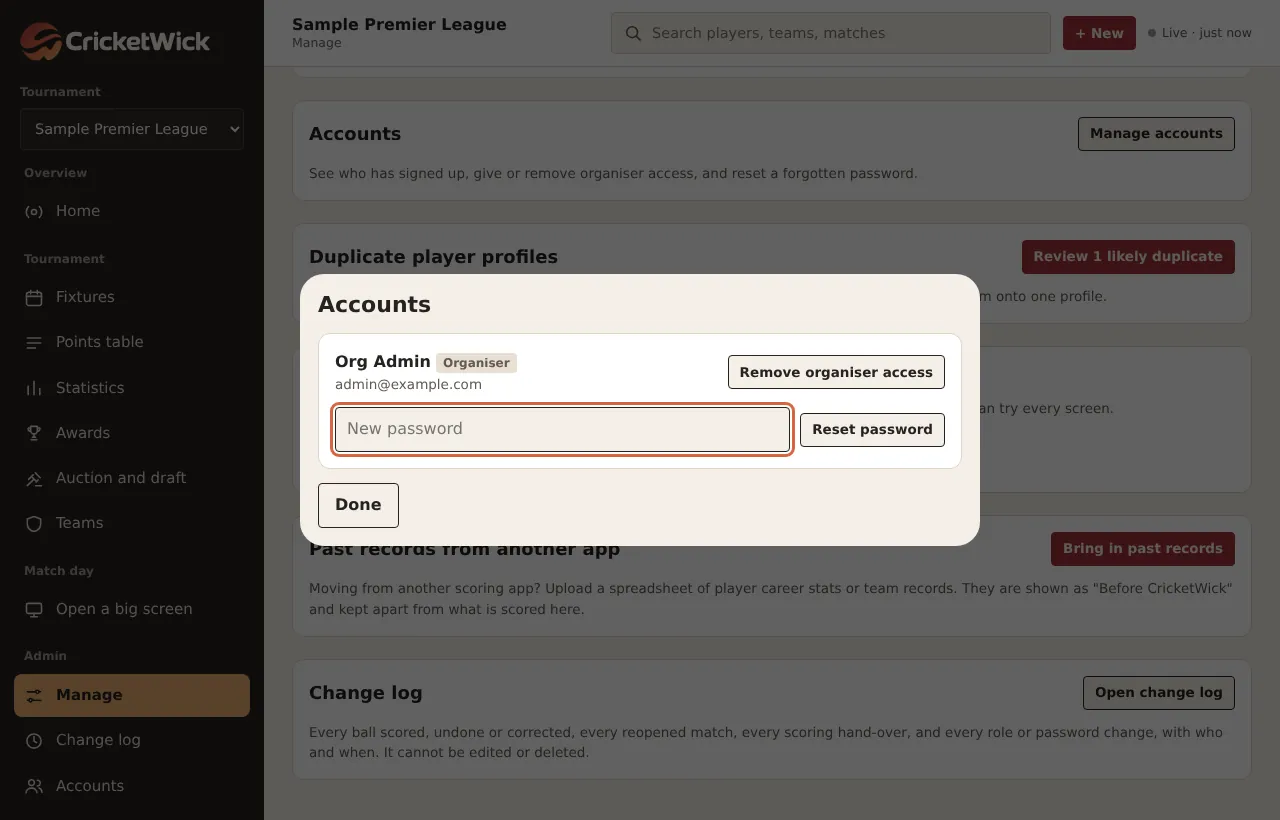
Open Manage, find Accounts and press Manage accounts.
Give or remove organiser access, or set a new password for someone who is locked out.
cricketwick.com/app
The accounts list.
Your own account
cricketwick.com/app
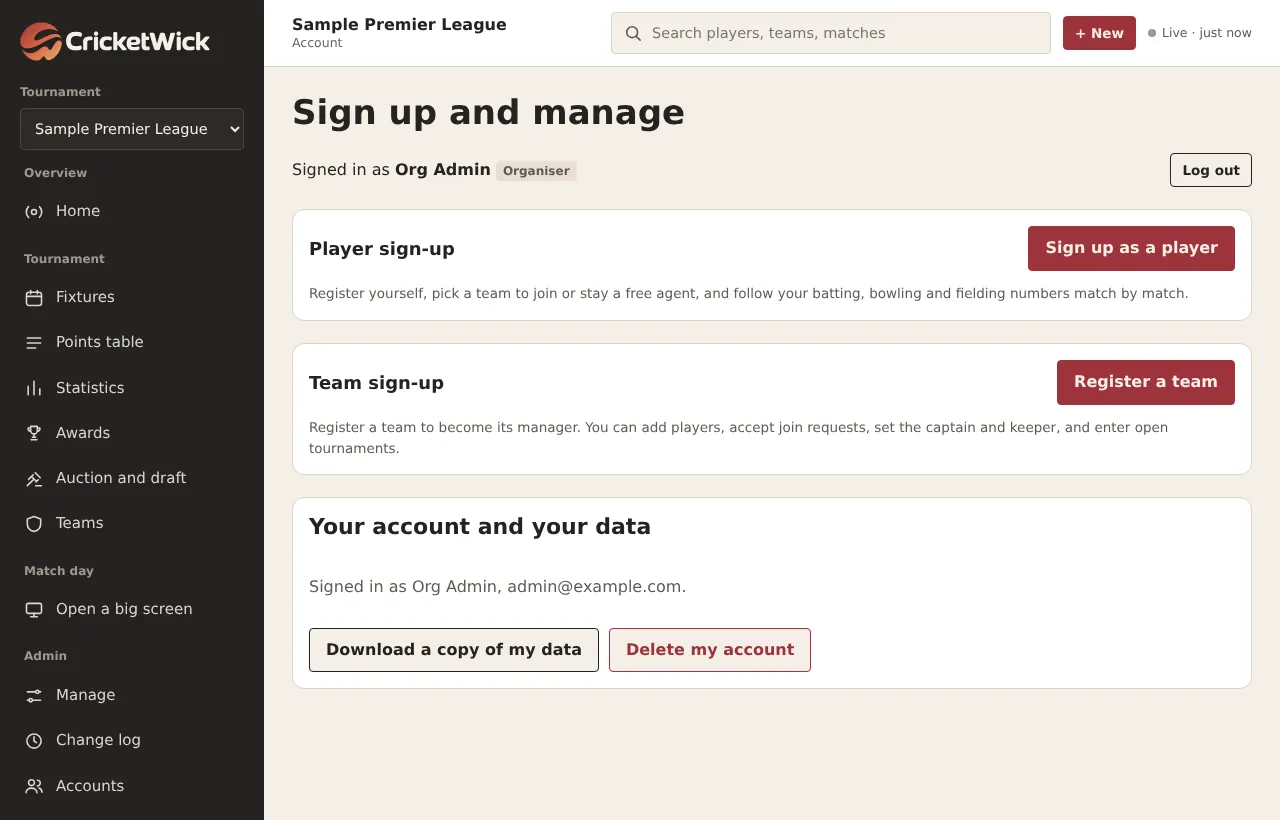
The Me page: your details, your player and team sign-up, and your data.
Download a copy of my data
Your account details, your player profile and the teams you manage, as a file.
Delete my account
Asks for your password. Match records keep the player's name because they belong to the tournament; your link to them, your photo and your images are removed.
27Chapter 27 of 31
Corrections, duplicates and the change log
Keep the records right and see who changed what.
Who: Organiser
cricketwick.com/app
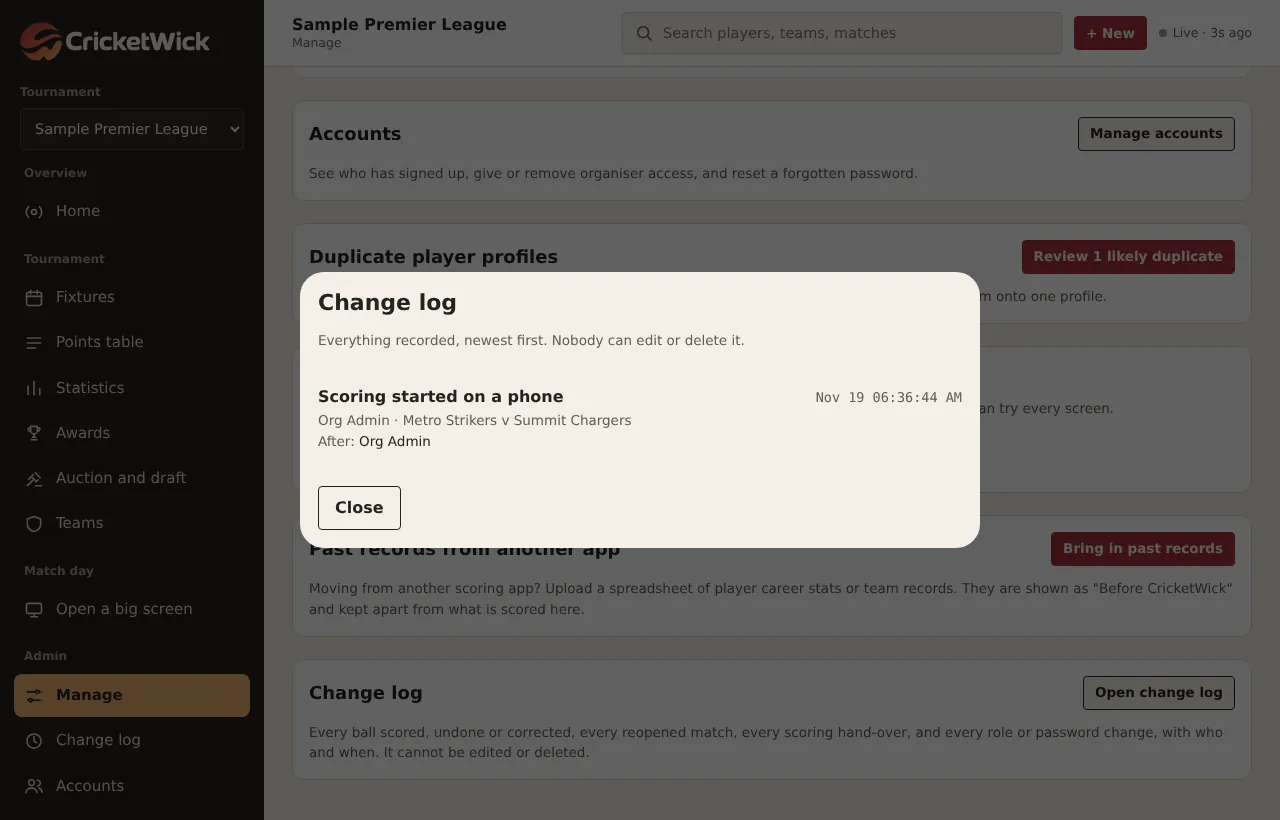
The change log: every ball scored, undone or corrected, every reopened match, every hand-over and every role change, with who and when.
Change log
On the Manage page, press Open change log. It cannot be edited or deleted.
Duplicate players
On the Manage page, find Duplicate player profiles and press Compare. Choose the profile to keep. Every match, score and team moves across, and you can undo it from the kept player's page.
Safety
Two players who appeared in the same match are never offered as duplicates, and a player in a match being scored cannot be merged until it ends.
cricketwick.com/app
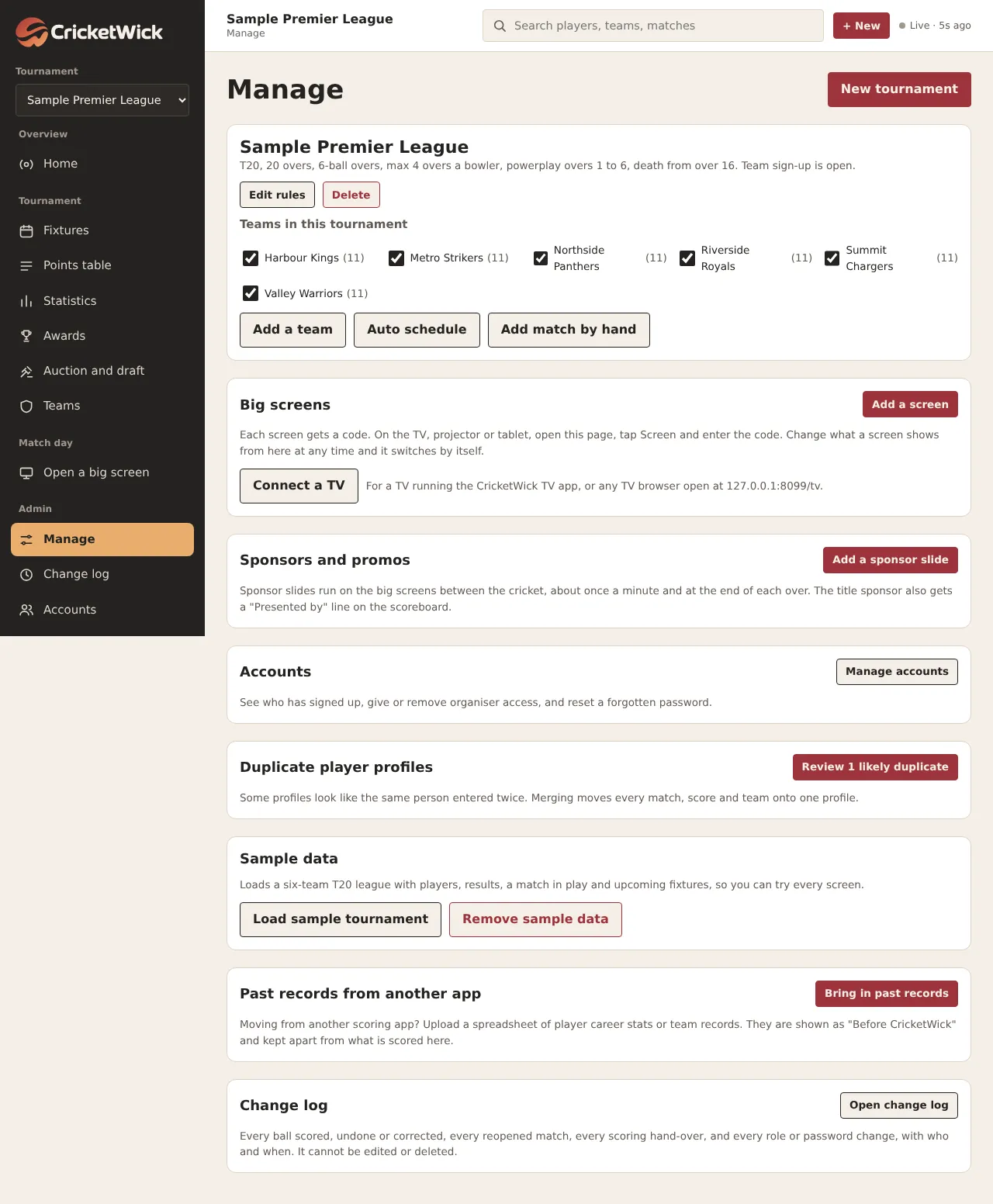
The Manage page holds everything the organiser sets up: rules, teams, schedule, screens, sponsors, accounts, past records and the change log.
28Chapter 28 of 31
Share, install and accessibility
Picture cards for chat groups, printing, installing the app and making it comfortable.
Who: Everyone
Share and print
Open a match and press Share score card (live) or Share result card (finished).
Share the picture through your phone, or download it.
Press Copy for WhatsApp to copy the score as text.
Press Print or save as PDF for the full scorecard.
The points table and the awards have share cards too.
Install as an app
iPhone and iPad
In Safari, tap Share, then Add to Home Screen.
Android
In Chrome, open the menu, then Install app or Add to Home screen.
Windows, Mac, Chromebook
In Chrome or Edge, use the install icon in the address bar.
The small buttons at the side of every page switch between light and dark, open the accessibility panel (text size, spacing, contrast, a simple font, a reading line, larger buttons, stopped animations and more) and the cookie settings. Alt + A opens the accessibility panel from the keyboard.
29Chapter 29 of 31
If something goes wrong
Quick fixes for the questions organisers ask most.
Who: Everyone
Problem
Fix
The score is not updating on another phone.
Check that phone has a signal, then reload. The live view refreshes by itself every five seconds when online.
I cannot score. It says someone else is scoring.
Ask them to hand over, or ask the organiser to take scoring back.
A ball was entered wrongly.
Tap Undo last until it is gone, then score it again. For a finished match, the organiser reopens it with a reason.
The TV shows the code page again.
The screen was deleted or the TV forgot it. Type the new code under Manage, Connect a TV.
A player appears twice.
Merge the two profiles under Manage, Duplicate player profiles.
The password email has not arrived.
Check the spam folder. The link lasts one hour; ask for a new one if it has run out.
A sponsor video does not play.
Check the link opens in a browser, starts with https:// and ends in .mp4 or .webm, and that the bucket's public access is on.
Still stuck? Ask the assistant at the bottom of this page, or see the questions and answers.
30Chapter 30 of 31
Glossary
Cricket and app words used in this guide.
Impact points
A single number for a player's contribution in a match, from runs, wickets, catches, economy and when they came.
Net run rate
Runs scored per over minus runs conceded per over, across the tournament.
Powerplay
The opening overs when only two fielders may stand outside the 30-yard circle.
Death overs
The last overs of an innings. Used for the phase statistics.
DLS
The Duckworth-Lewis-Stern method for setting targets in rain-shortened matches.
Par score
The score a chasing side needs at the moment play stops for good, under DLS.
Super Over
A one-over-each tie-breaker. Two wickets end a side's Super Over.
Free hit
The ball after a no-ball, from which the batter can only be out in the ways allowed off a no-ball.
Scoring lock
The rule that only one phone scores a match at a time.
Screen code
The six-character code that connects a TV to a screen.
Every recent change to CricketWick, newest first, with links to the steps.
This list updates itself each time CricketWick changes. Older changes stay in the news archive.
Fixed
Clearer help when a TV code is typed in the wrong place
If someone types the code from the CricketWick TV app into the Screen page, CricketWick now explains that TV codes are entered by the organiser under Manage, then Connect a TV.
Improved
Cleaner footer
The bottom of the home page now shows the company line, a contact button, the legal links in one row and a Back to top button.
Fixed
Corrected business address
The business address in the footer and the Legal centre now reads Spring, TX 77379.
Improved
Venues in Made for everyone
The Made for everyone section on the home page now has a Venues tab for ground, nets and indoor centre owners.
New
Find cricket grounds, nets and indoor centres near you
The new Grounds and facilities page lists cricket grounds, practice nets and indoor centres with their facilities, pitches, amenities, photos, prices and free times. Search by ZIP code within the distance you choose, or by city, state or country, and send a booking request.
Venue managers list free, claim existing listings, add free times and answer requests. When you set up fixtures, the venue box now suggests grounds from the directory.
Our promises and the common questions now sit in two matching cards with icons, and the questions open with a plus button.
Improved
A fuller home page
The home page now shows auction night and umpire booking, a Made for everyone section where organisers, scorers, team managers, players, fans and umpires each see what CricketWick does for them, and Straight answers on price, privacy, your data and accessibility with the most asked questions. Umpires is also in the menu and the footer.
Improved
Clearer news and feature requests on the home page
The What's new and Most wanted features panels on the home page are now cards with labels, dates and a short summary of each update, a ranked list with boost bars for requests, and a guide to asking for a feature when there are none yet. The CricketWick mark behind the footer is now larger and easier to see.
Improved
Livelier numbers strip on the home page
The four numbers on the home page are now small live scoreboards: the scoring keys light up ball by ball, the live score refreshes every five seconds, and the eight formats and ten kinds of dismissal play through in turn. They stay still for anyone who turns off motion. The footer links are also larger and easier to read.
Improved
A cleaner assistant with better answers
The Ask CricketWick panel has a new, cleaner design with suggested questions, a typing indicator, source cards and a button to start a new conversation. Answers now pick the sentence that defines what you asked about, so a question like hit wicket gets the definition first.
Improved
The Ask CricketWick button no longer covers text
The assistant button is now a small round icon that shows its name when you point at it, and it sits beside the menu instead of on top of it.
New
Find and book umpires, or list yourself as one
The new Umpires page lists qualified umpires with their rates and the dates they are free. Clubs and organisers send booking requests for free, and the umpire accepts or declines.
Umpires list themselves for free and add the dates they are free. Leagues can ask us for umpires for a whole season.